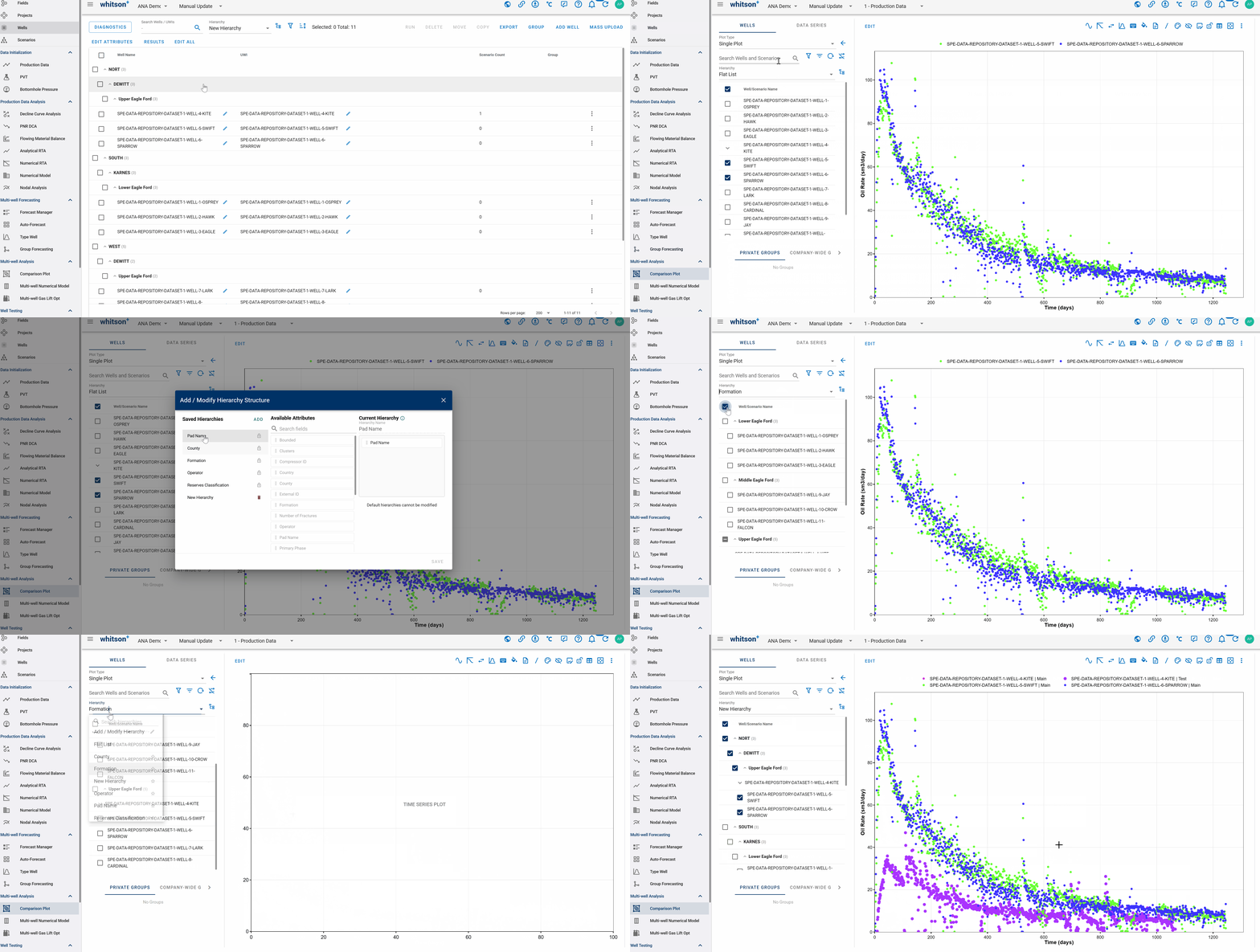
Wells Hierarchy
The Hierarchy feature allows you to group, organize, and view your wells in a structured, multi-level tree format across the navigation sidebar, top well dropdown menu, and the Wells and Comparison Plot modules.
1. Accessing the Hierarchy
- Navigation Sidebar: If you are working in an single well analysis module (such as PVT, Production Data, BHP, DCA, PNR DCA, RTA, and numerical models, well test), you can expand or collapse the sidebar tree view using the arrow button 'Show well list' to view your structured well hierarchy.
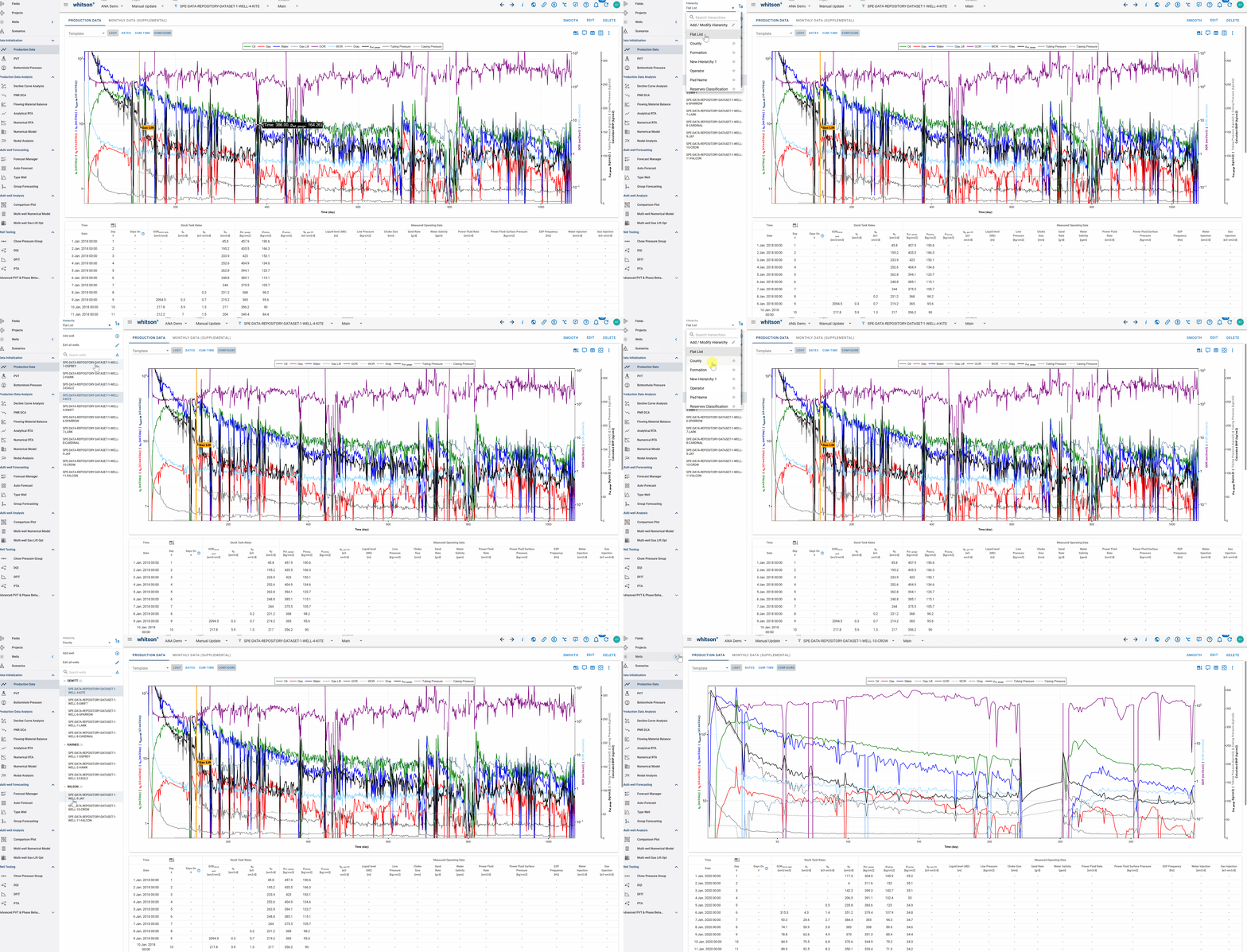
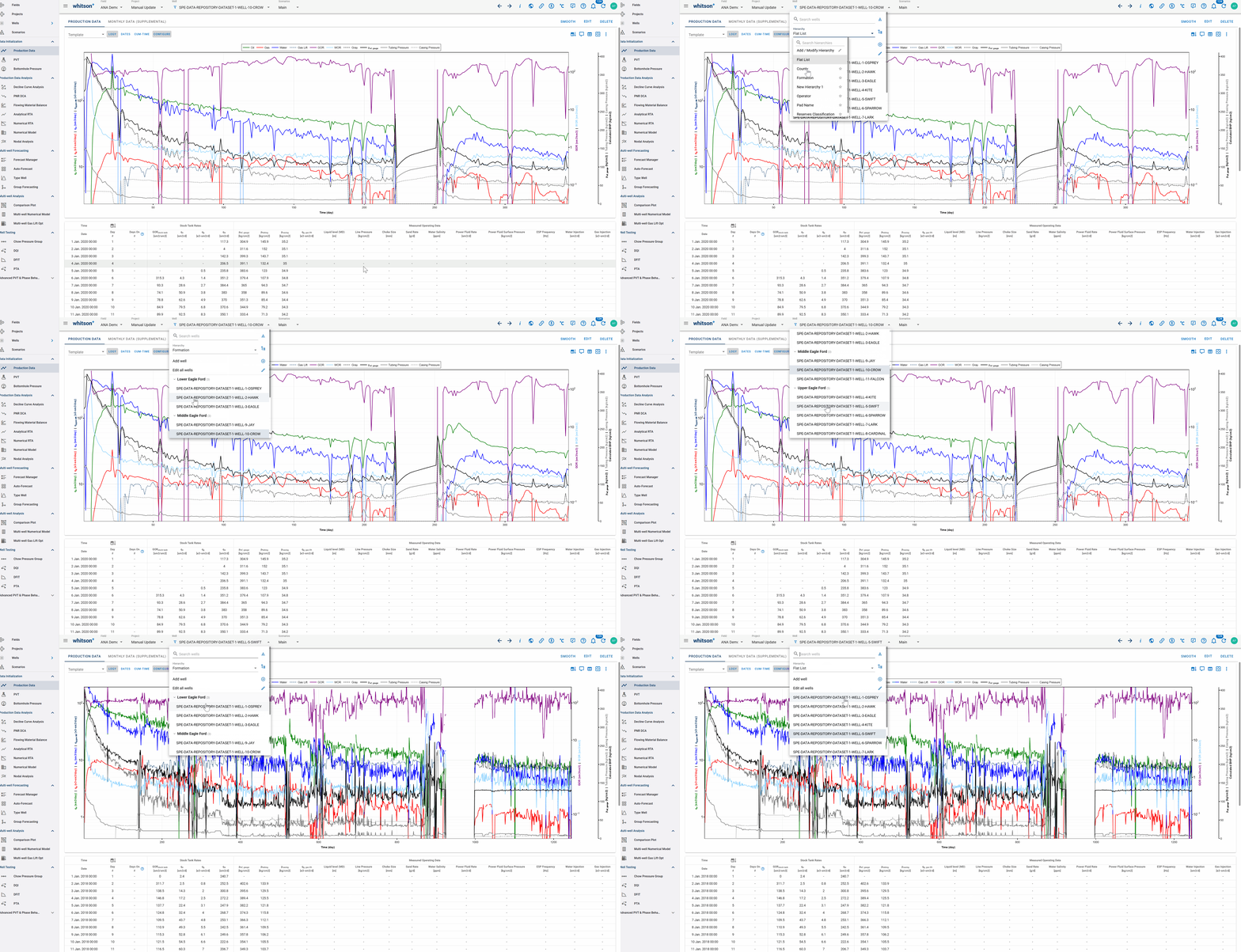
- Top Well Dropdown Menu: If you are in a single-well module, you can click the top well dropdown menu to select a different hierarchy view or click the Add / Modify Hierarchy button to configure your structural tree.
- Wells Module: Navigate to the Wells section where you can select your preferred hierarchy from the dropdown menu, or click the Add / Modify Hierarchy button right beside it to organize and configure all the wells of the project.
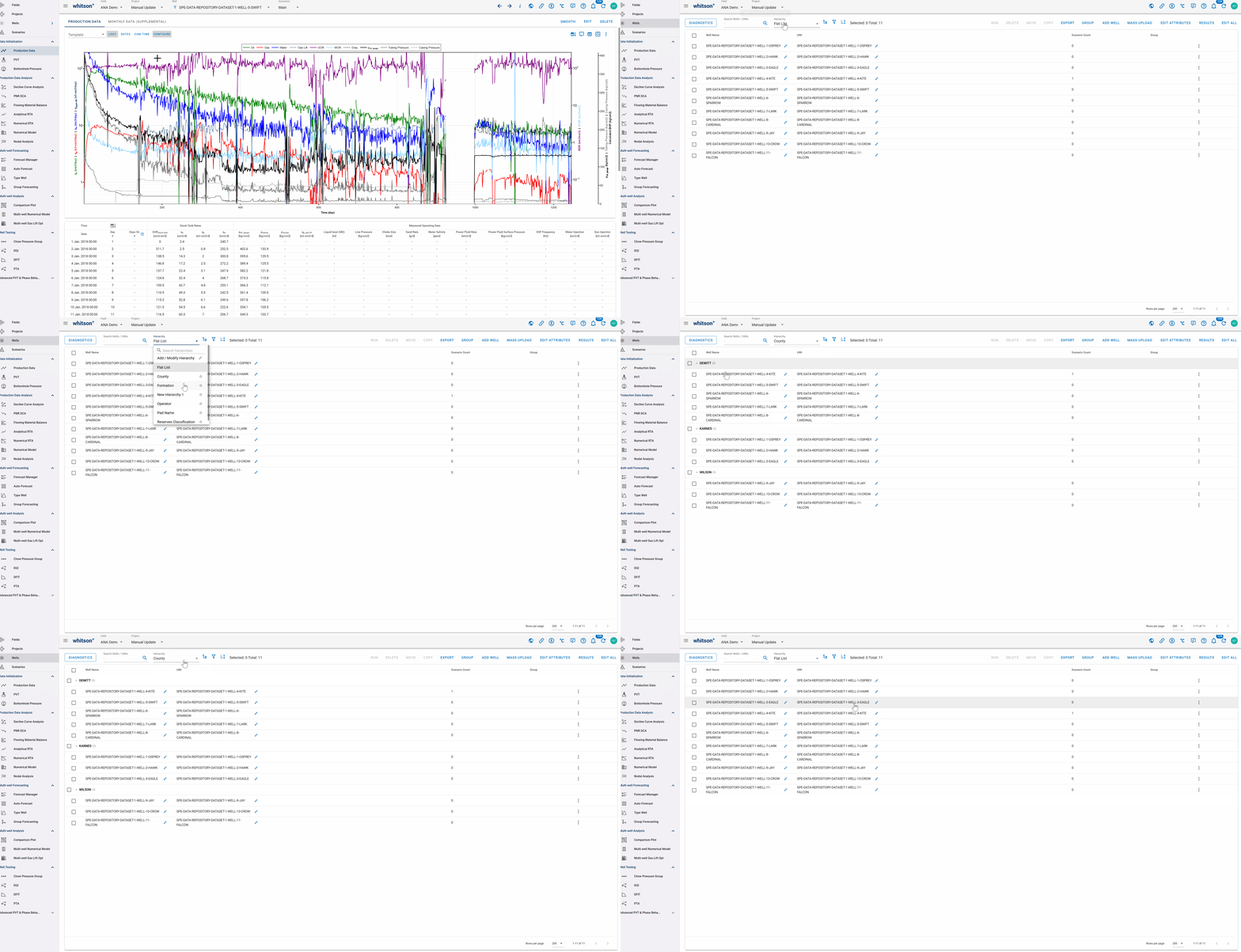
2. Selecting and Viewing a Hierarchy
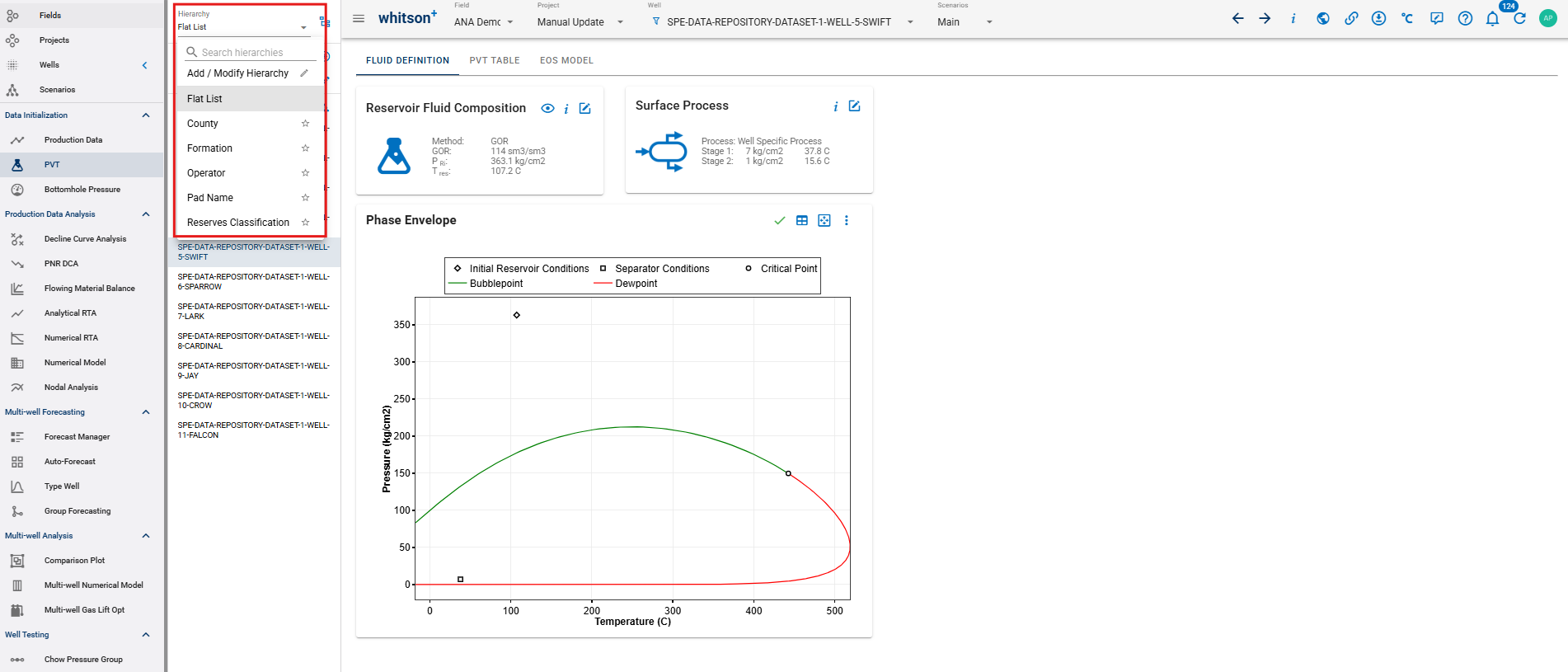
In any of the options above, every time you choose to view the hierarchy, there is a preset hierarchy list that you can select to easily organize your wells list.
Note
If 'Flat List' is selected, this means no hierarchy will be applied.
3. Creating and Modifying Hierarchy Structures
To build or customize your own hierarchy levels:
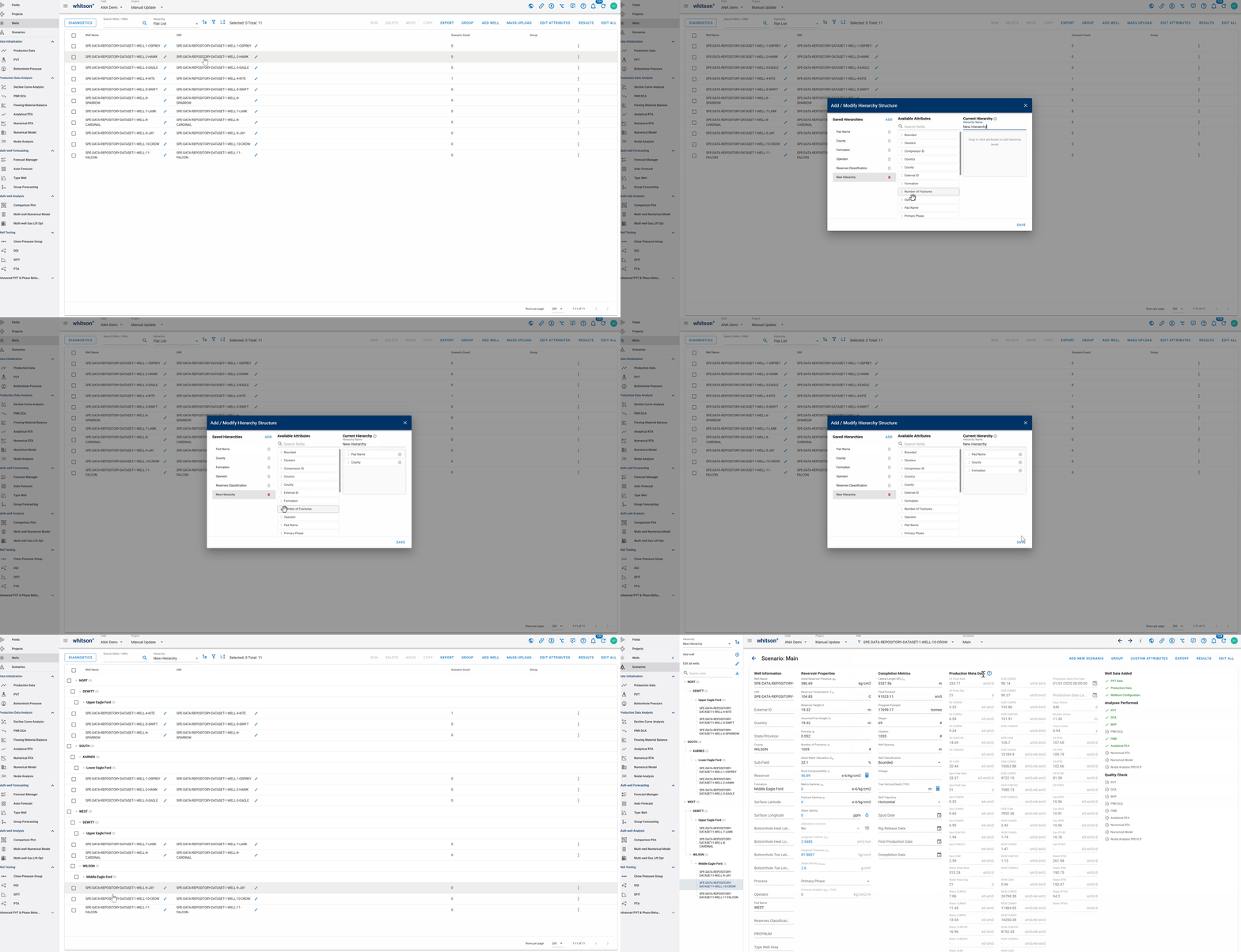
- Click the 'Add/Modify Hierarchy' button located near the hierarchy list menu (accessible from the Navigation Sidebar, Top Well Dropdown Menu, or the Wells Module).
- In the configuration window, view your Saved Hierarchies or create a new one.
- Drag and drop or select attributes from the Available Attributes list into the Current Hierarchy column to define your grouping levels. And add a name for the hierarchy.
- Click Save to apply your custom organizational structure across the project
4. Hierarchy in the Comparison Plot
When working in the multi-well analysis module comparison plot, you can use the hierarchy dropdown and the Add / Modify Hierarchy button directly in the left-hand panel independently to organize and filter the wells displayed in that specific plot view.