Fields
1. Overview
The Fields page allows users to organize projects and wells by field. From this page, users can:
- Add a new field
- View field details
- See the number of projects associated with each field
- Edit field information
- Manage field visibility and ownership
2. Editing Field Information
-
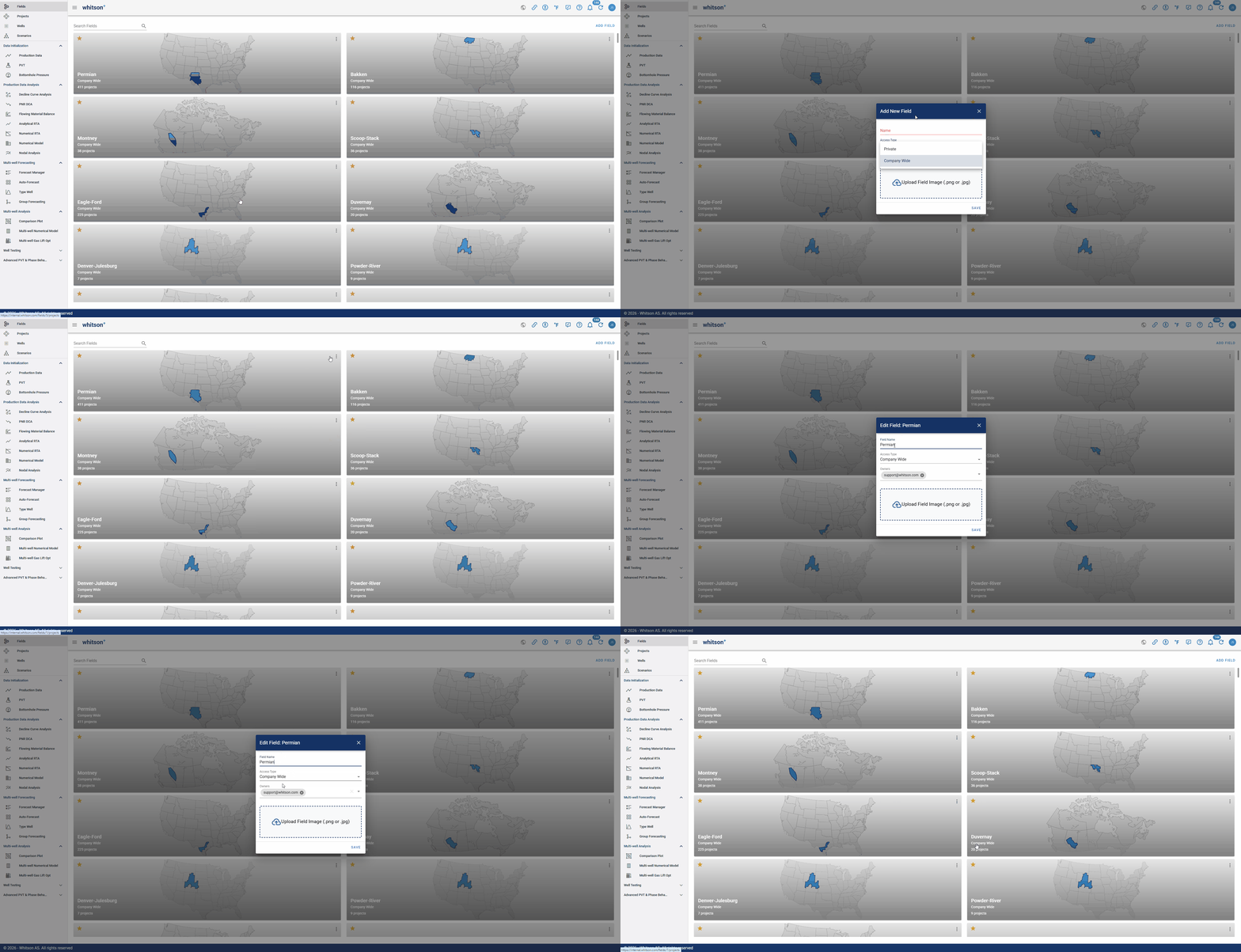
Field information can be edited from the field settings menu, as shown above.
-
A field can have one or multiple owners. Field owners can edit field details, manage access, and update field-level settings.
-
Users who are not listed as owners can still view the field if they have access through a shared link, but their permissions may be limited depending on the field visibility settings.
3. Field Visibility
Fields can be set as either Private or Company-wide.
| Visibility Type | Description |
|---|---|
| Private | Only visible to the field owner or owners. Private fields can still be shared with non-owners by sending them the field URL. |
| Company-wide | Available to users within the company domain. Company-wide fields allow users to view, edit, browse wells, and access projects within the field. |
4. Field-Level Fluid or EOS Model
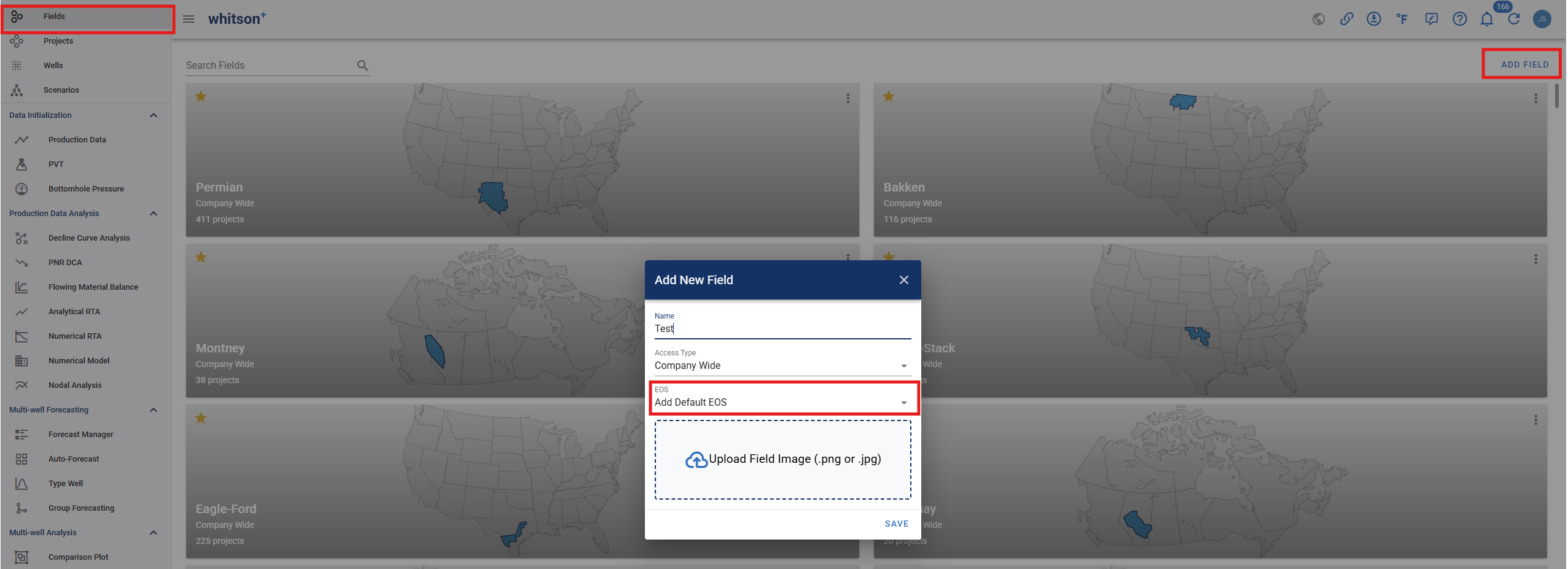
Each field has a field-wide fluid or EOS model associated with it. This model applies across the field and can be used by projects or wells within that field.
-
When creating a well, selecting "Add Default EOS" will simply add Peng-Robinson as the EOS model for that field.
-
When creating a well, selecting "Custom EOS" will redirect you to the EOS Model section where you will be able to add a new model in addition to the default one.
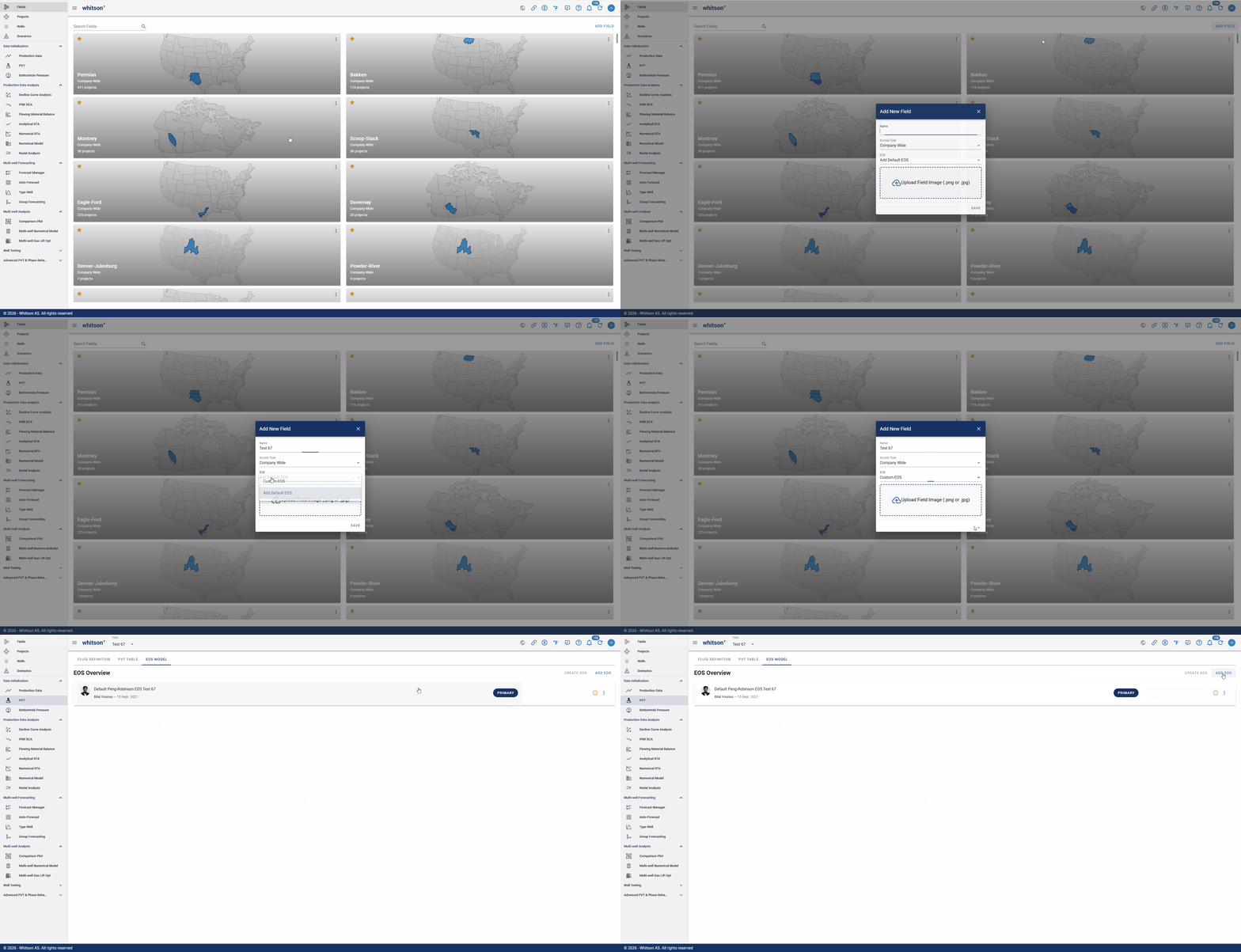 If you would like to further view, edit, or add a new EOS model, visit the EOS Model page.
Custom EOS Model Access
When creating a field, keep in mind that if you select Custom EOS and then click away from the EOS Model section, you will not be able to return to that section directly.
To access it again, you will need to upload a well and navigate to the PVT section.