Projects
1. Overview
The Projects page provides an overview of all projects within a field.
From this page, users can view:
- All projects in the selected field
- Project owners
- The number of wells in each project
- The number of scenarios in each project
- Key project notes
- Project visibility and access settings
2. Common Project Setup
Most clients use the following project structure:
| Project | Description |
|---|---|
| DAILY | Stores daily, company-wide production data connected to each well. |
| FLOWBACK | Stores hourly flowback data, when applicable. |
| MONTHLY | Stores company-wide monthly data, commonly used for DCA and Type Well workflows. |
Additional projects are usually created for sandbox work or other special purposes. For example, users may create separate projects to learn the software, complete certifications, run well tests, or build multi-well numerical models.
3. Project Actions
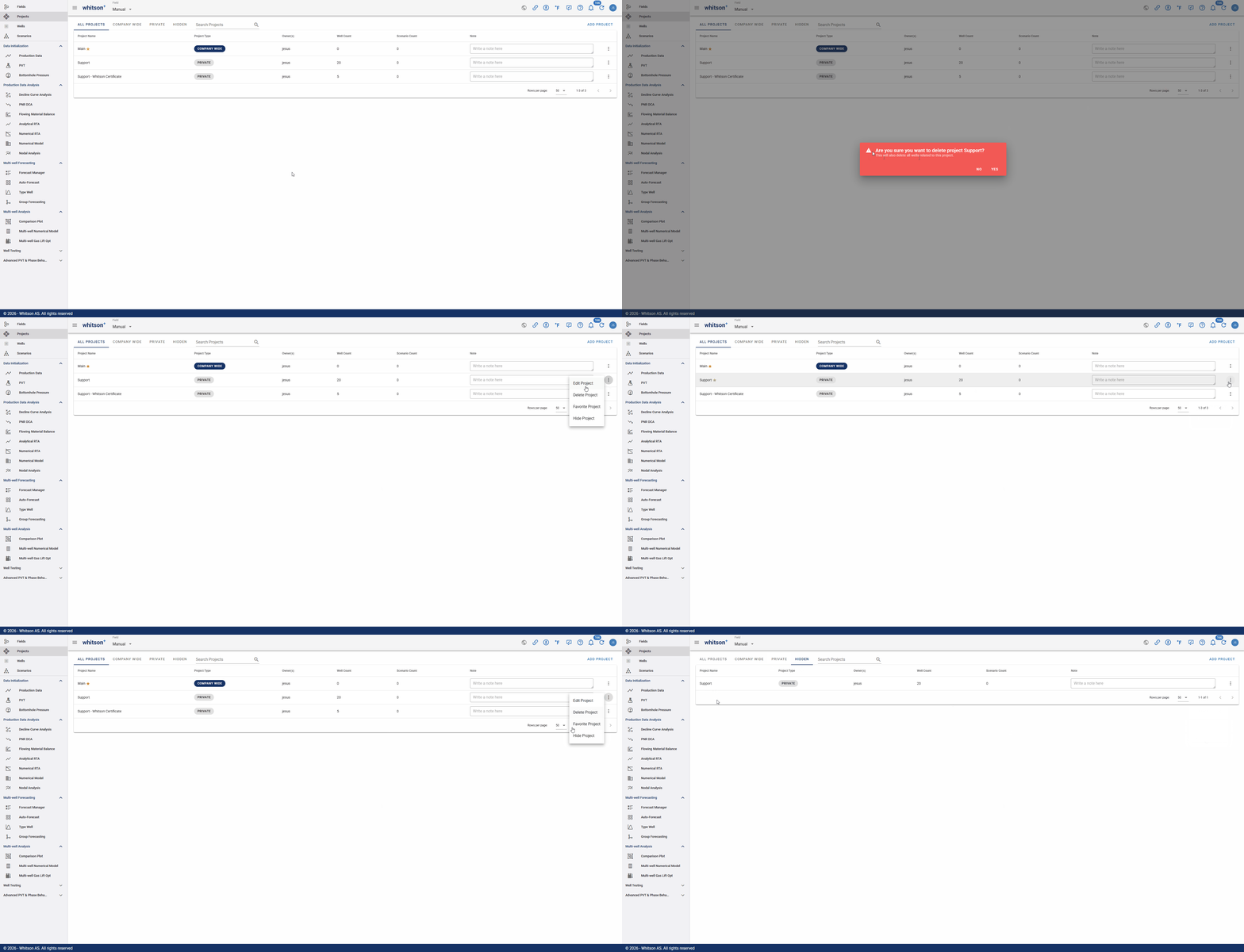
Users can manage how projects appear in their project list and control project access or removal.
| Action | Description |
|---|---|
| Hide Project | Removes the project from your project list. This does not delete the project or its data. |
| Delete Project | Deletes the project and removes it from the field. This action should only be used when the project is no longer needed. |
| Favorite Project | Marks the project as a favorite with a gold star, making it easier to find and access later. |
| Share Project | Creates a share key that allows the project to be transferred to another whitson+ domain. By default, wellbore, wellhead, and production data are included, with the option to also include all analysis data in the project. |
Deleting Projects
Be careful when deleting a project. Deleting a project permanently removes project-specific data and settings. Make sure the project is no longer needed before deleting it.
4. Sharing and Importing Projects
Projects can be shared between whitson+ domains using the Share Project and Import Project features.
The user sharing the project creates a share key for the recipient's domain. The recipient can then use this key to import the project into their whitson+ domain.
4.1. Share Project
To share a project:
- Go to the Projects page.
- Click the three dots next to the project you want to share.
- Select Share Project.
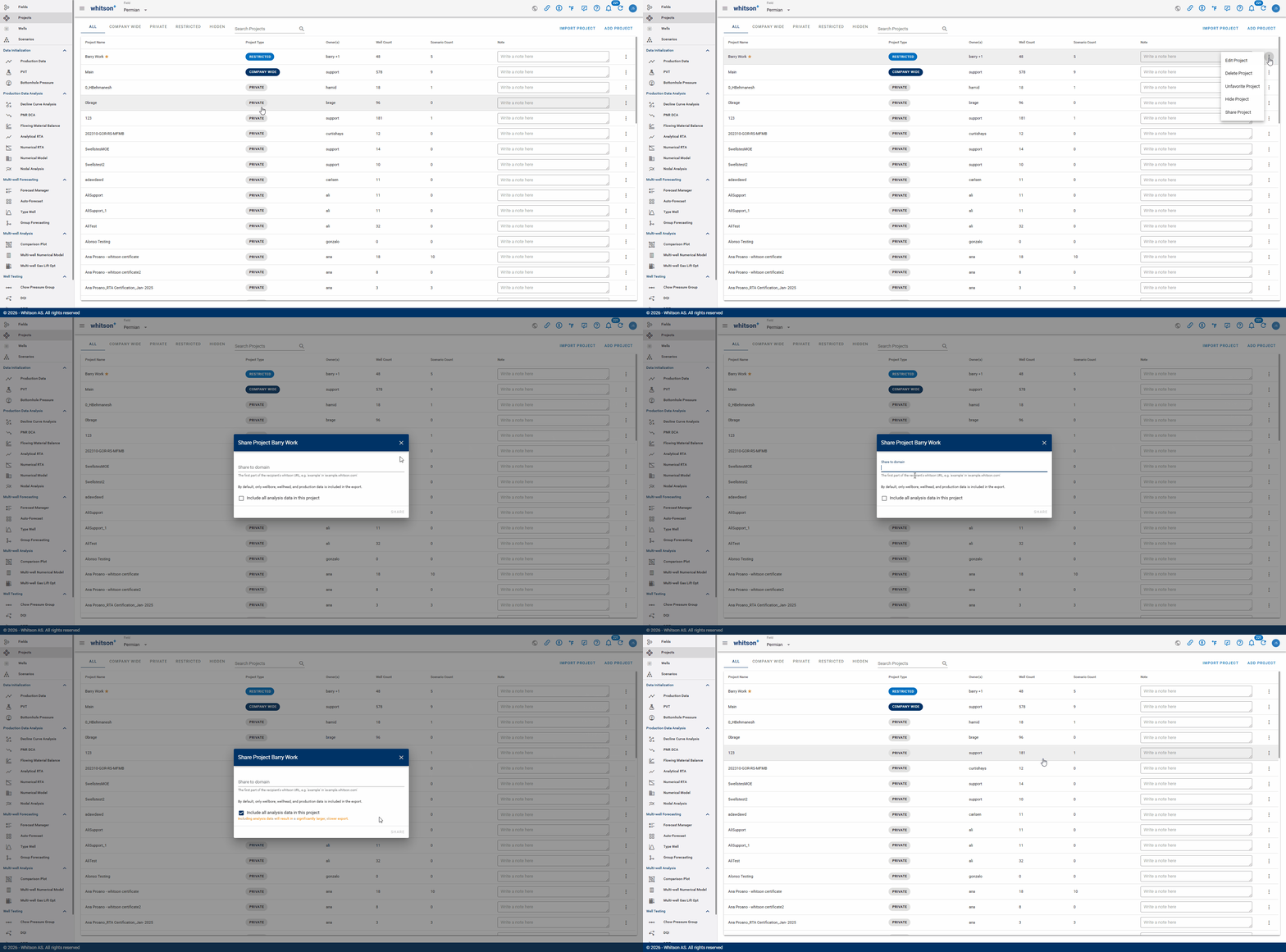
Enter the recipient's whitson+ domain in the Share to domain field.
Only enter the first part of the recipient's whitson+ URL. For example, if the recipient uses:
example.whitson.com
enter:
example
By default, the shared project includes:
- Wellbore data
- Wellhead data
- Production data
To also transfer the analysis data contained in the project, select Include all analysis data in this project.
Click Share to create the project share key. Send this key to the user who will import the project.
Including Analysis Data
If Include all analysis data in this project is not selected, only the wellbore, wellhead, and production data are included in the shared project.
4.2. Import Project
To import a project that has been shared with you:
- Go to the Projects page.
- Click Import Project in the upper-right corner.
- Paste the full share key provided by the sender into the Share key field.
- Click Import.
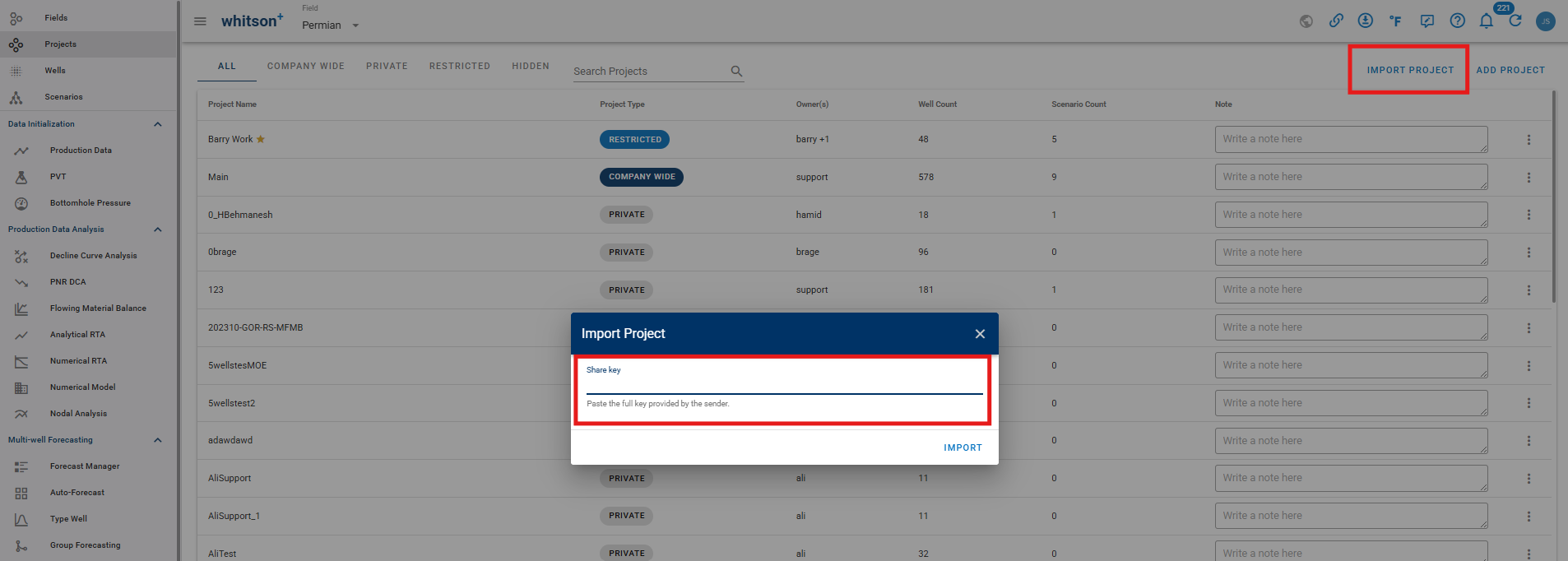
Once the import is complete, the shared project will be available within the receiving whitson+ domain.
Share Key Expiration
Project share keys must be used within 24 hours of being created. If the key expires, the sender will need to generate a new share key.
5. Edit Project
The Edit Project button allows users to update project-level settings, including access type, project owners, production data handling, and DCA defaults.
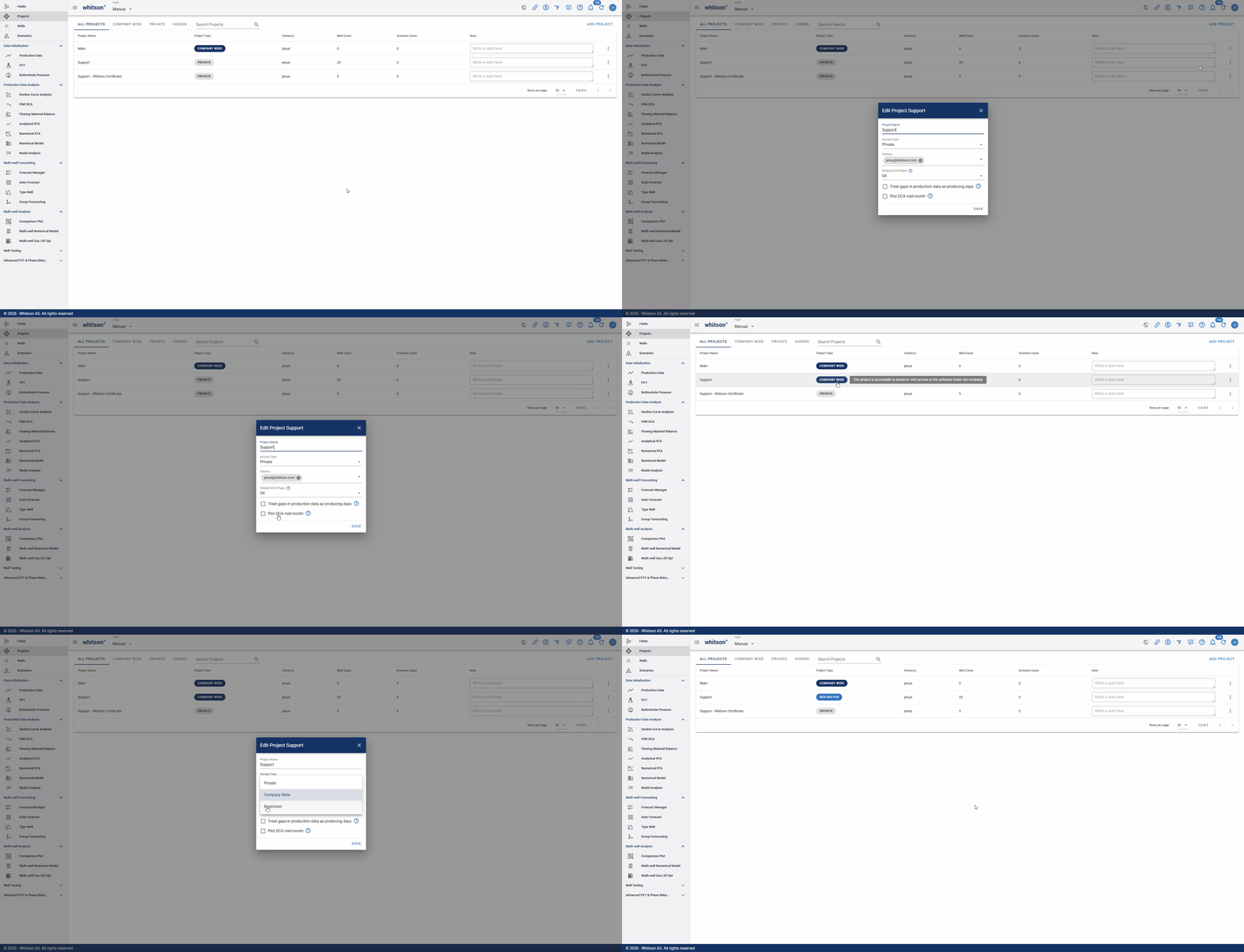
To open the Edit Project menu, click the three dots next to the project name and select Edit Project.
5.1. Project Types
When a new project is created, it is private by default.
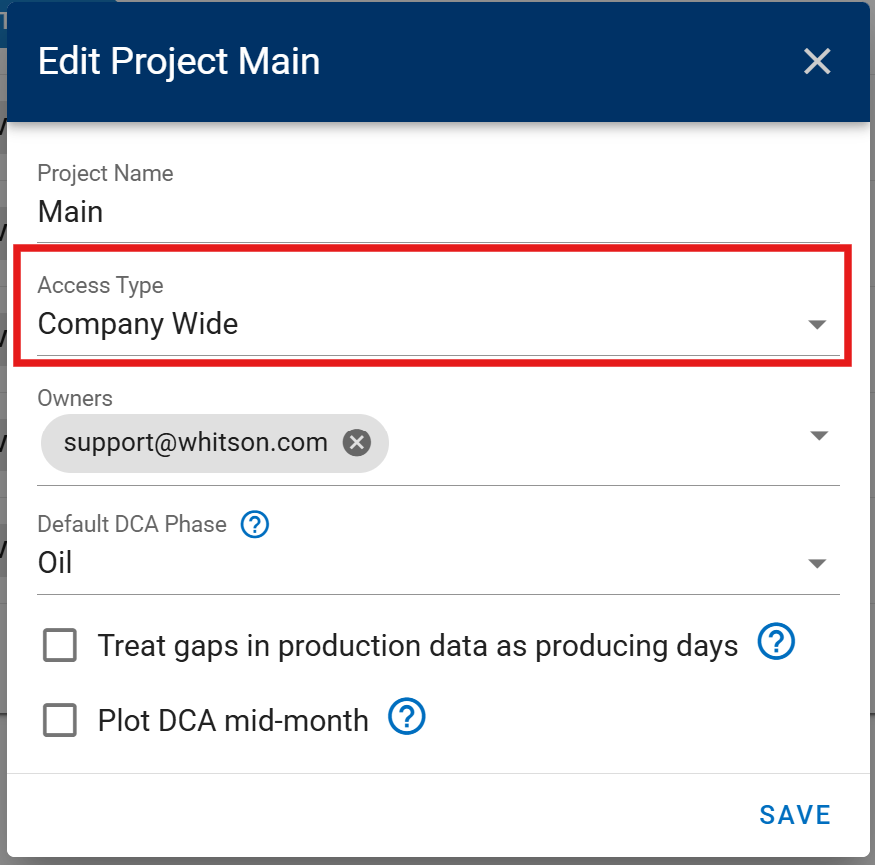
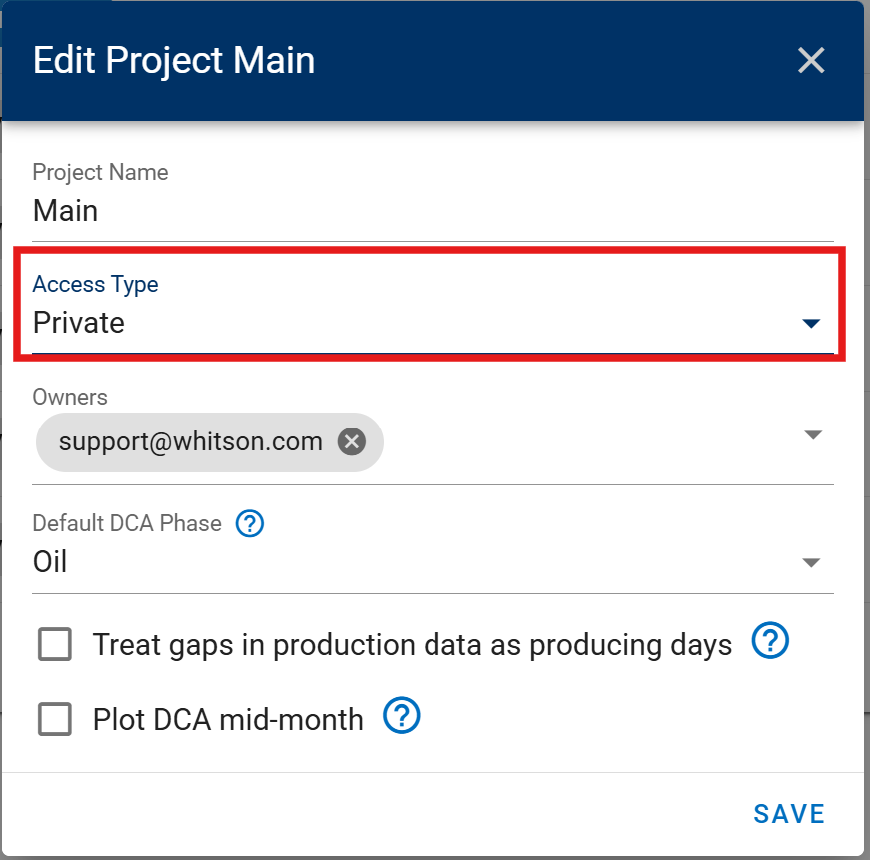
Projects can be set as Private, Company-wide, or Restricted using the Access Type field in the Edit Project menu.
5.1.1. Company-wide
Accessible to all users within the company who have access to the software.
5.1.2. Private
Only visible to the project owner or owners. Private projects do not appear in other users' project lists, but they can still be shared with users in the organization by sending the project URL.
Private Project Access
Be careful when setting a project to Private if you are not listed as one of the project owners.
If this happens, the project will disappear from your user interface. You will not be able to access it again until another project owner either changes the project back to Company-wide or adds you as a project owner.
Contact support@whitson.com if needed.
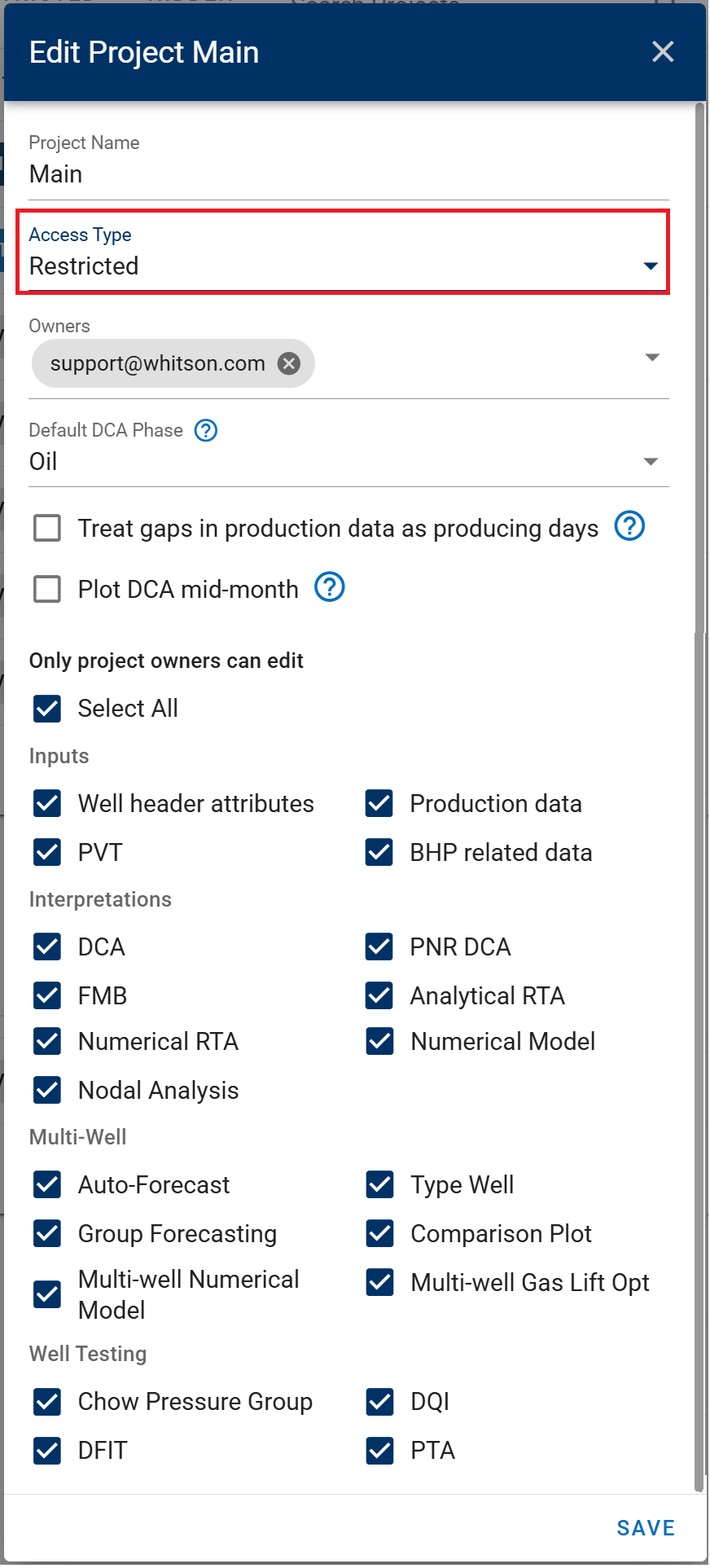
5.1.3. Restricted
Accessible to all users within the company, but only project owners can specify which data other users have permission to edit.
-
Data: Well header attributes, production data, PVT, and BHP-related data.
-
Interpretations: DCA, PNR DCA, FMB, Analytical/Numerical RTA, Numerical Models, and Nodal Analysis.
-
Multi-Well: Auto-forecasts, type wells, group forecasting, comparison plots, multi-well numerical models, and gas lift optimization.
-
Well Testing: Chow Pressure Group, DQI, DFIT, and PTA.
5.2. Project Owners
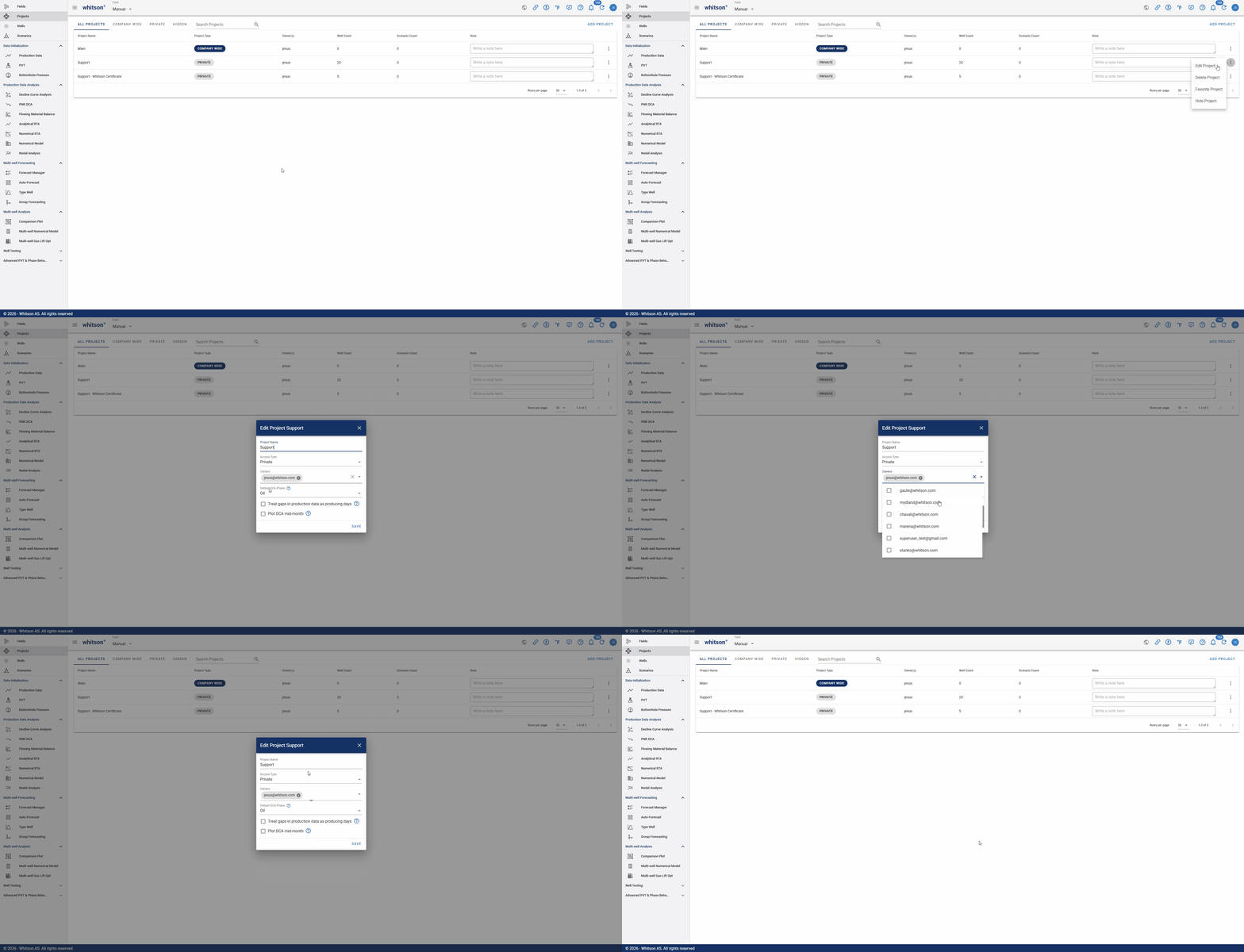
Projects can have multiple owners.
To add a project owner:
- Click Edit Project.
- Go to the Owners field.
- Search for and select the user you want to add.
- Save the project changes.
5.3. Production Data Gaps
The Treat Gaps in Production Data as Producing Days setting controls how gaps in production history are handled during cumulative production calculations.
This setting is available in the Edit Project menu.
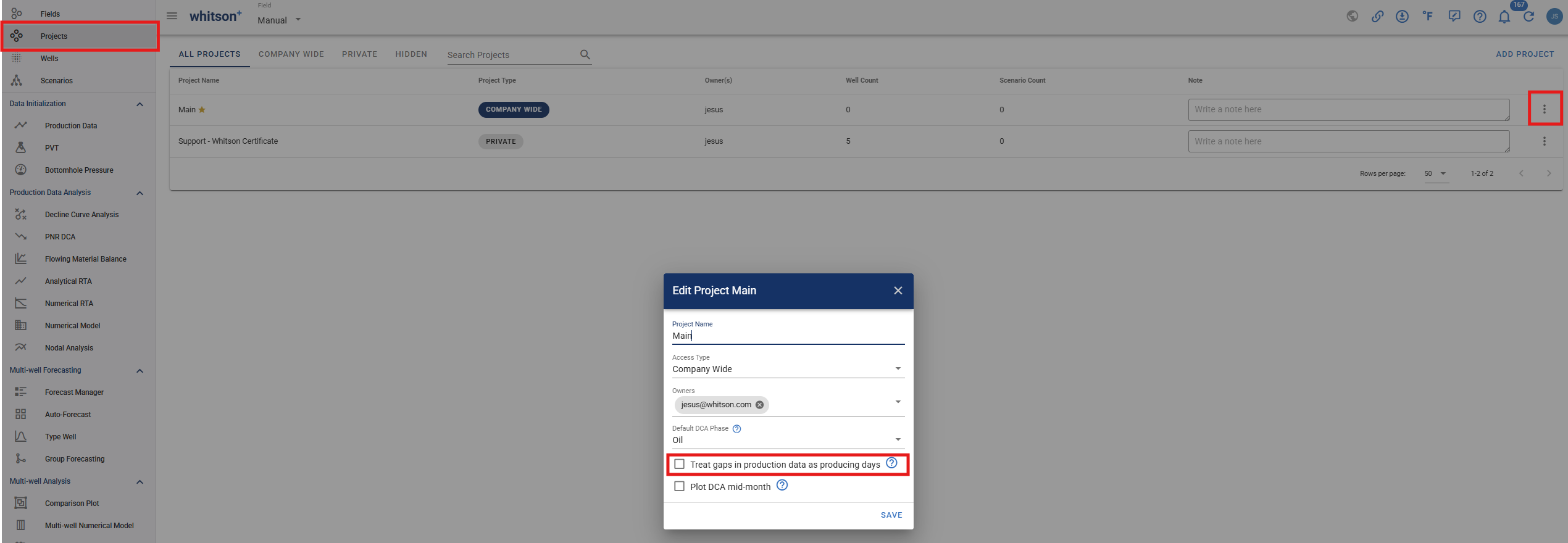
5.3.1. Toggle OFF: Treat Gaps as Shut-in Periods
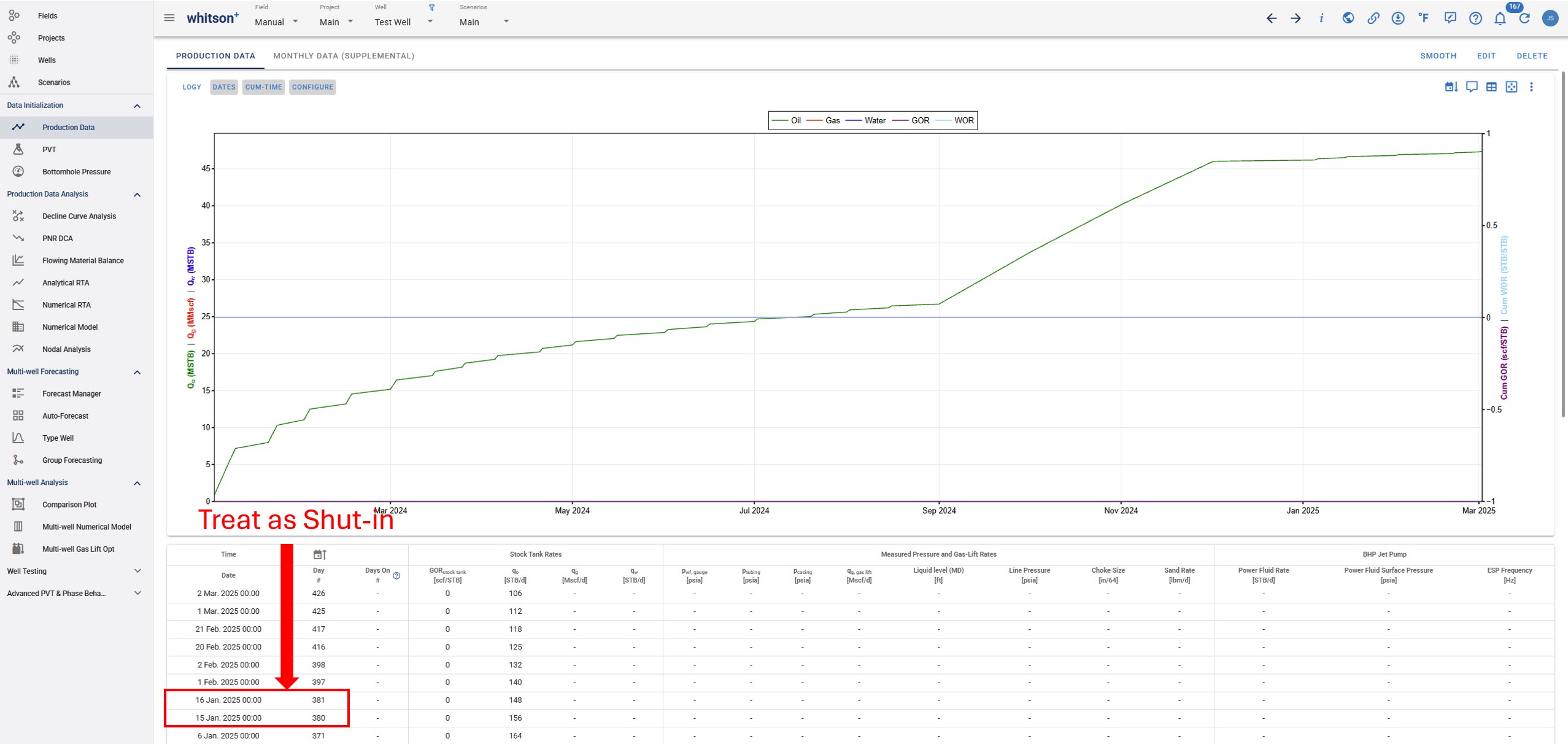
When the toggle is OFF, gaps that exceed the expected daily or monthly reporting interval are treated as shut-in periods.
Daily reporting intervals are considered 1-day timesteps. Monthly reporting intervals are considered 28, 29, 30, or 31-day timesteps.
Example:
If there is a 15-day gap in the production data, the software does not assume the well produced for all 15 days. Instead, the median timestep frequency is used to calculate cumulative production.
5.3.2. Toggle ON: Treat Gaps as Producing Periods
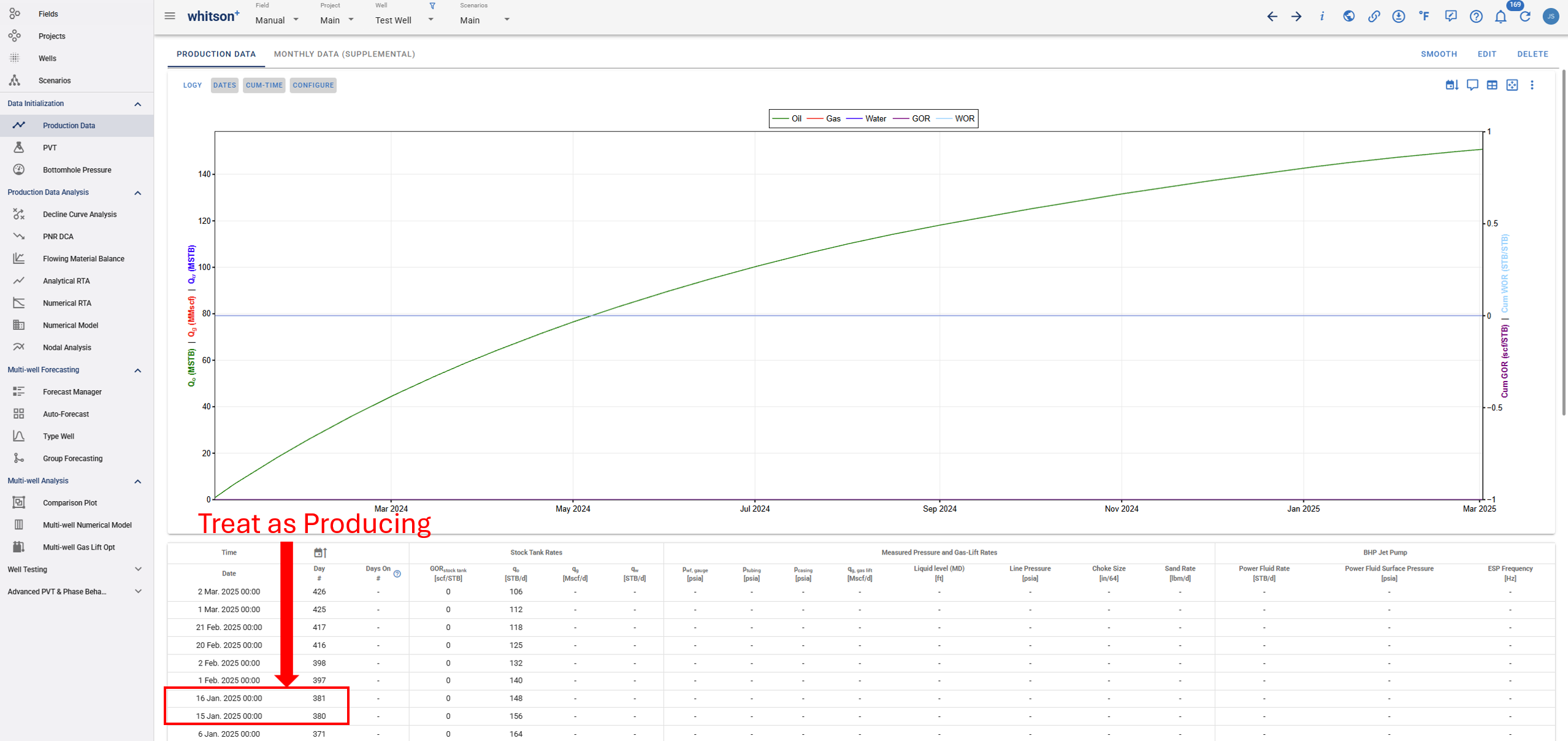
When the toggle is ON, any gap in the production data is treated as an active producing period.
The software assumes that the rate reported at timestep was the producing rate from timestep through timestep .
Example:
If the production data is reported daily and there is a sudden 15-day gap, the software assumes the well continued producing during those 15 days.
Important Note
If a production dataset contains timesteps shorter than 1 day, the software will always use the Toggle ON logic, even if the project-level toggle is set to OFF.
5.4. Project DCA
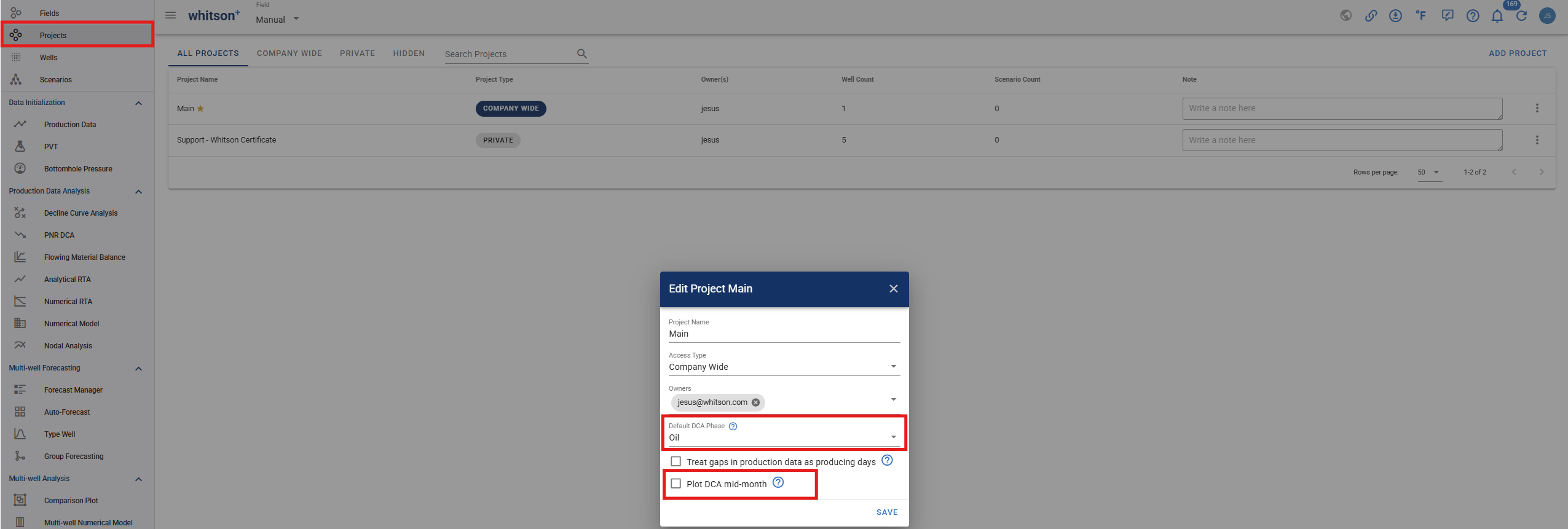
These project-wide DCA settings control how DCA-related views open and how monthly production data is displayed in DCA plots.
| Setting | Description |
|---|---|
| Default DCA Phase | Sets the production phase that opens by default in DCA-related workflows, such as Type Well, Auto-Forecast Manager, Type Well Manager, and Group Forecasting. For example, if this is set to oil, the DCA views will open with oil selected as the default phase. |
| Plot DCA Mid-month | Plots monthly DCA production at the middle of the month, typically the 15th, instead of using the uploaded production date. This can help monthly production data appear more centered on DCA plots. For more details, see the Plot DCA Mid-month section. |