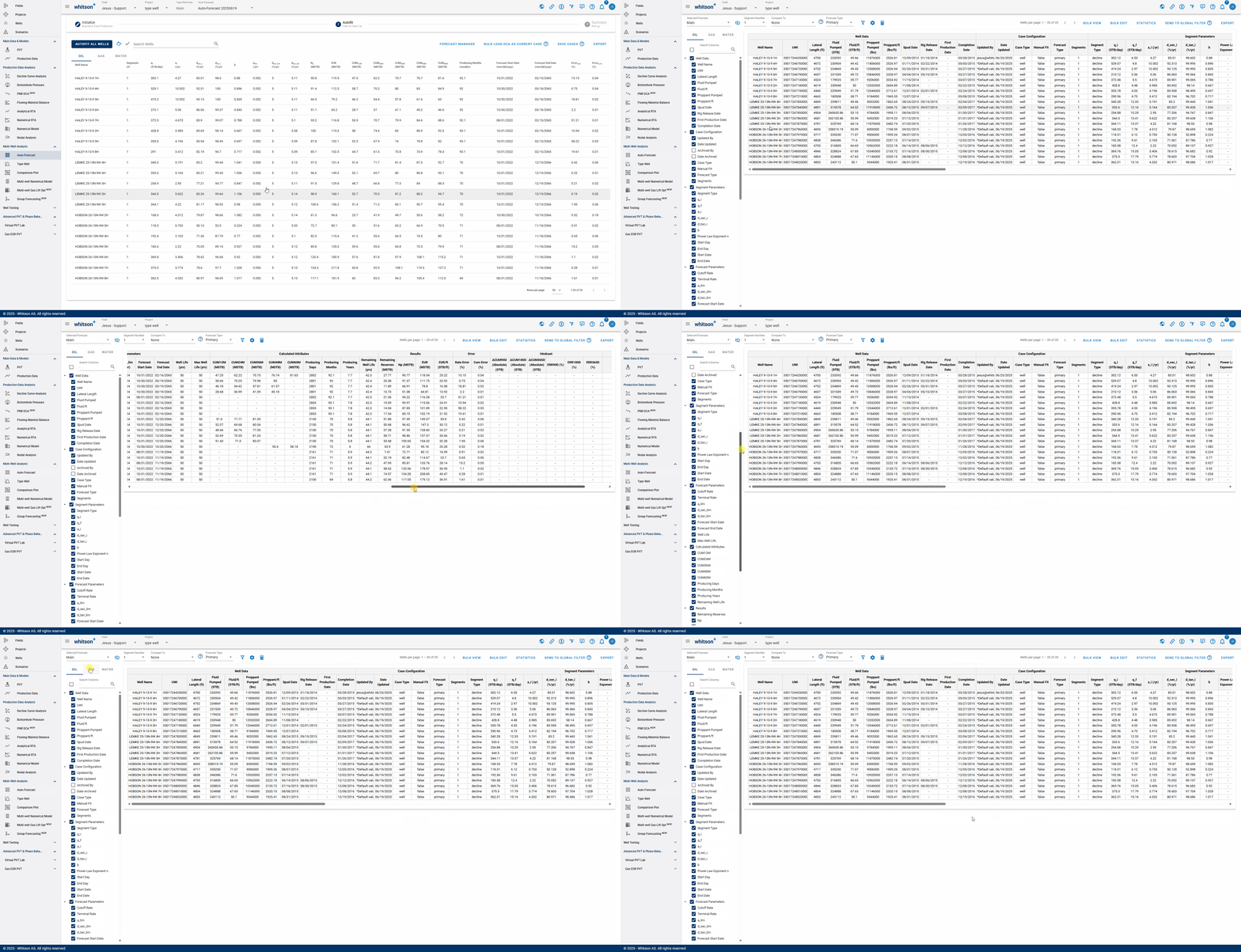
Forecast Manager
The Forecast Manager in whitson+ is a centralized workspace for reviewing, comparing, and validating production forecasts. Users can compare multiple forecast scenarios, such as reserves cases or prior AFEs, side-by-side using tools like unity plots, while also accessing detailed reporting of decline parameters. The GIF below shows how to access the Forecast Manager and begin exploring these workflows.
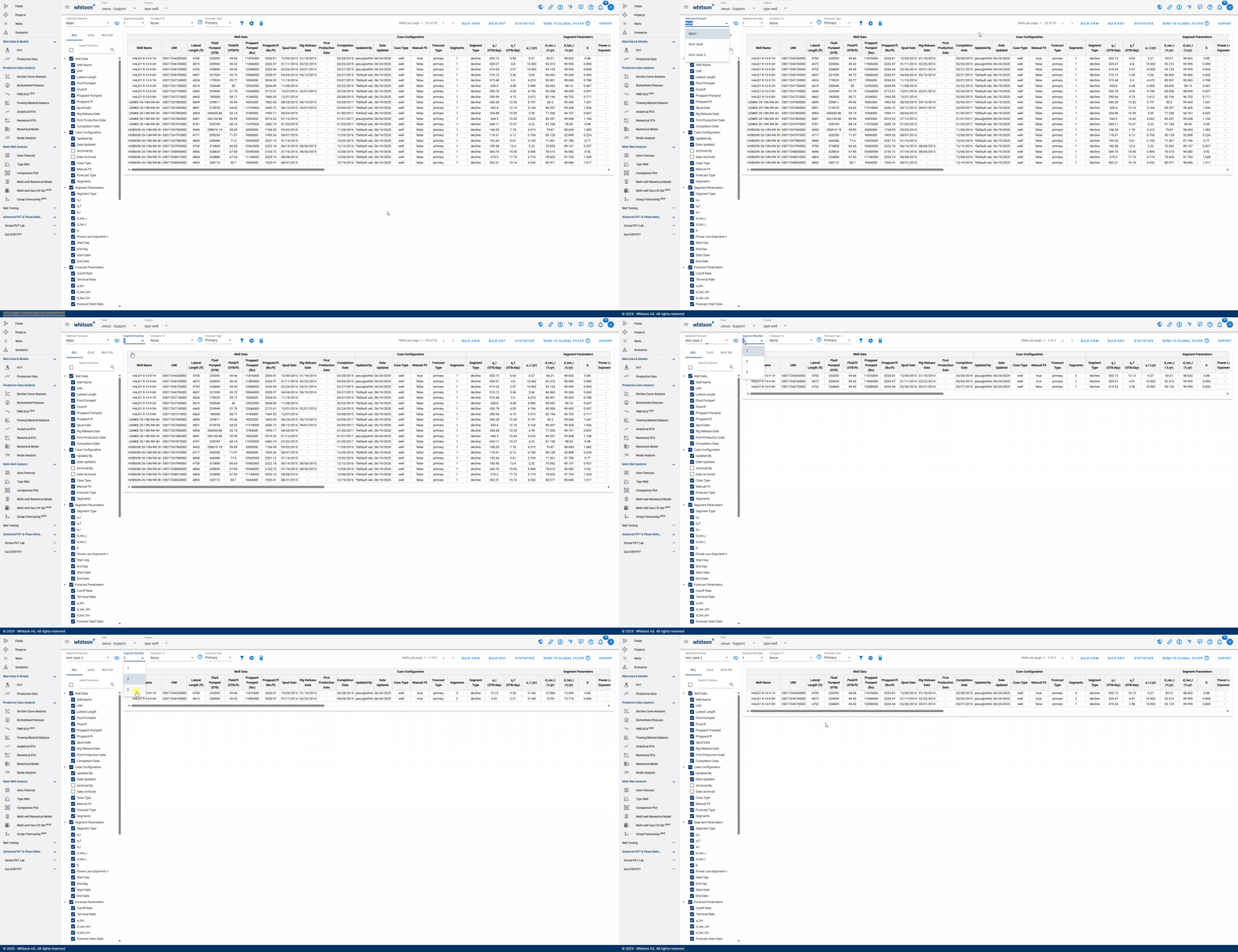
- Selecting Forecast: choose a forecast case to display. Cases created in the Auto-Forecast section can be applied to all wells, while cases created in the Decline Curve Analysis section can be applied to individual wells.
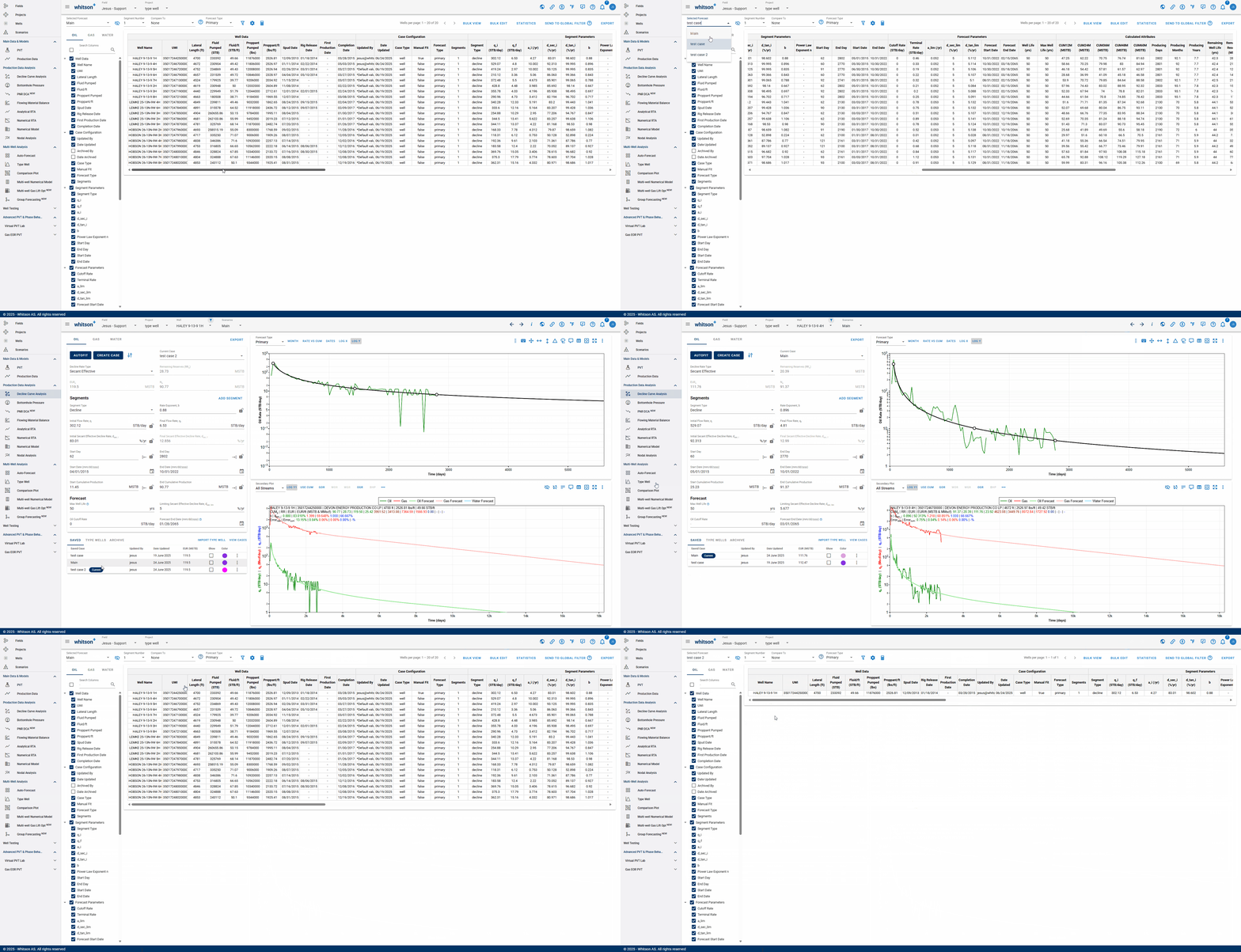
- Number of Segments: you can select the amount of segments included in the analysis. Additional segments can only be added manually to each well's analysis.
- Comparing: After selecting a comparison forecast, "Compare To" columns will populate at the end of the table, enabling variance analysis.
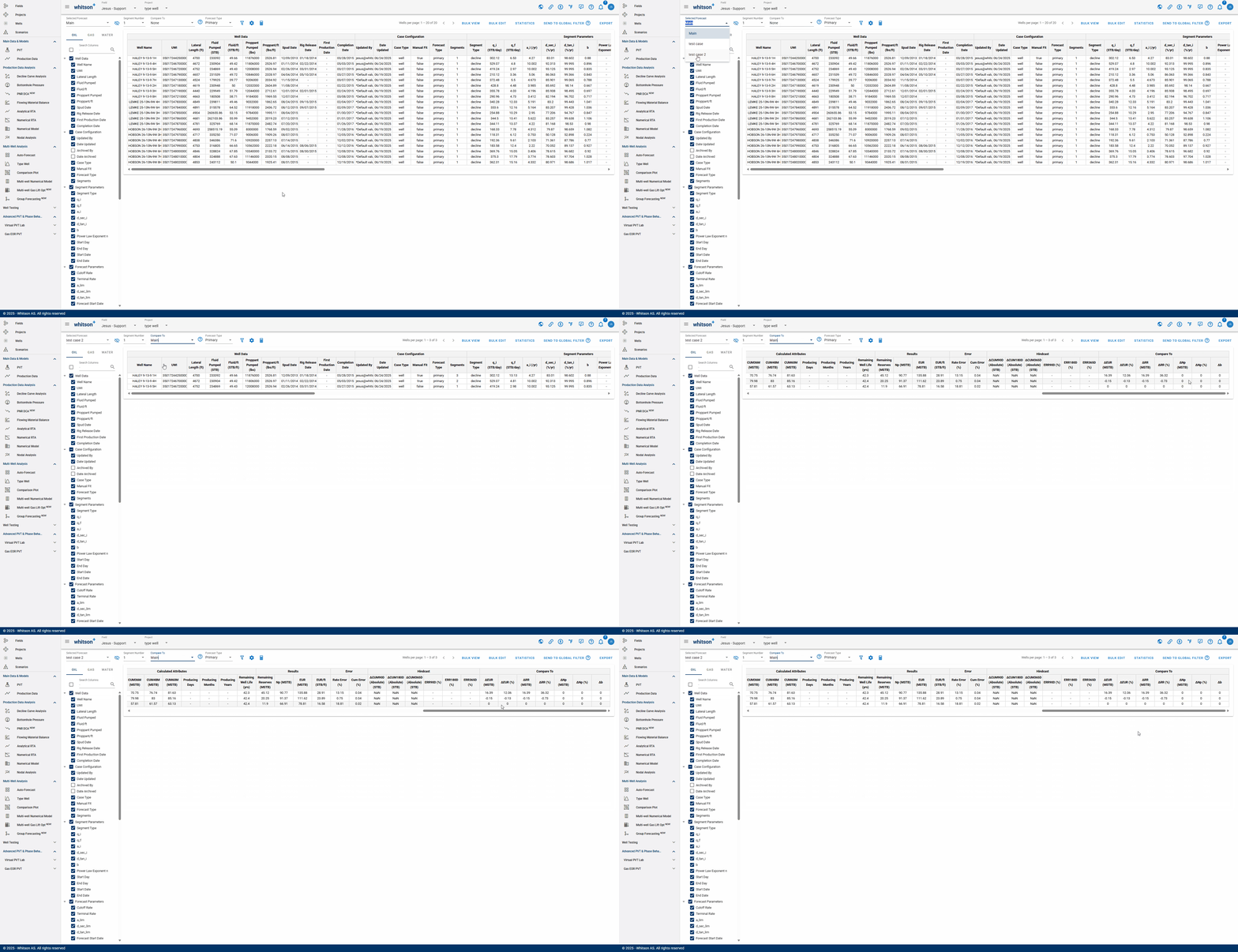
An interpretation of the gif above:
If the values are positive: "test case 2" is outperforming "Main"
If the values are negative: "Main" is outperforming "test case 2"
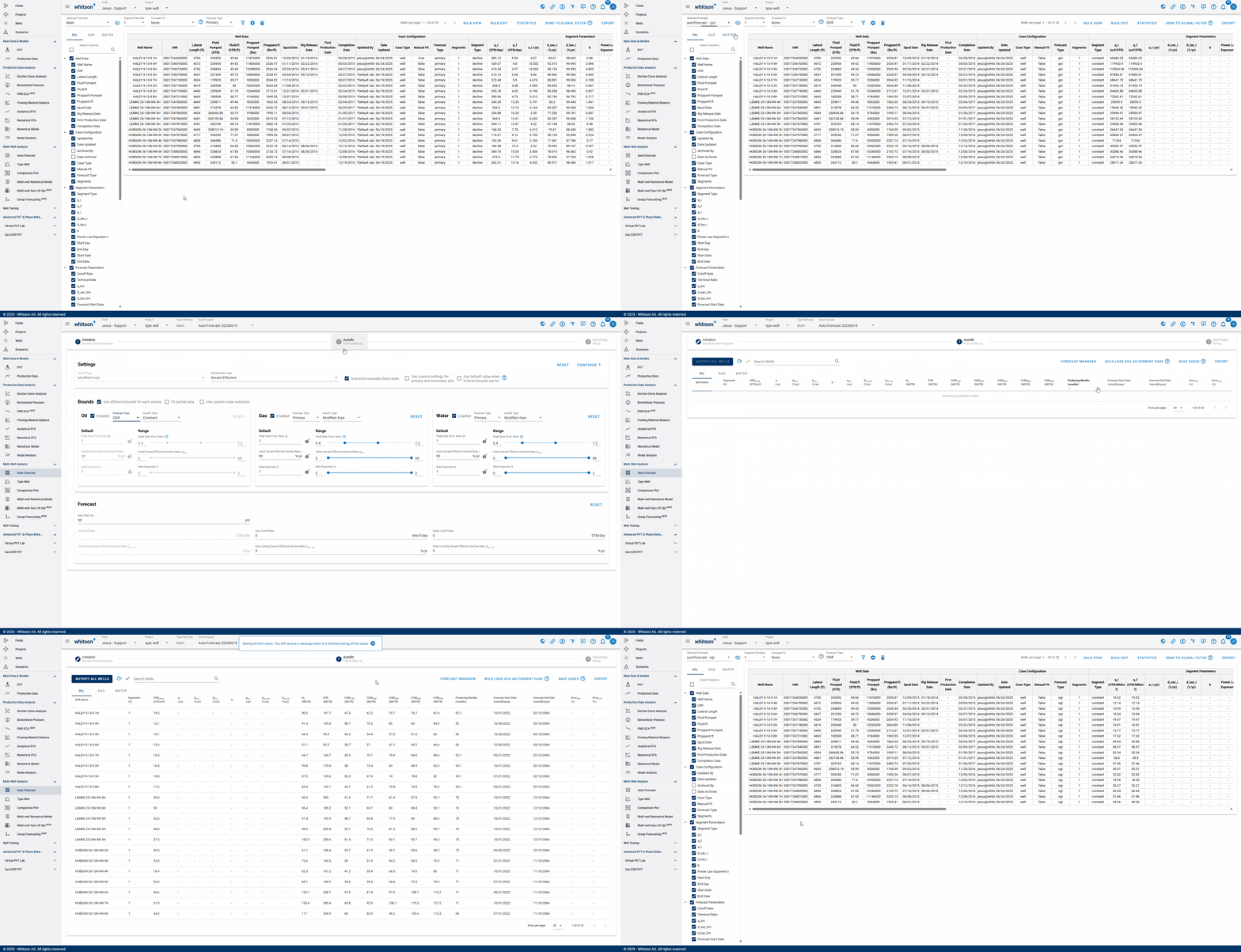
- Forecast Type: view the analysis by the type of forecast performed. The forecast type chosen must be tied to a previously saved case.
1.1. Filter
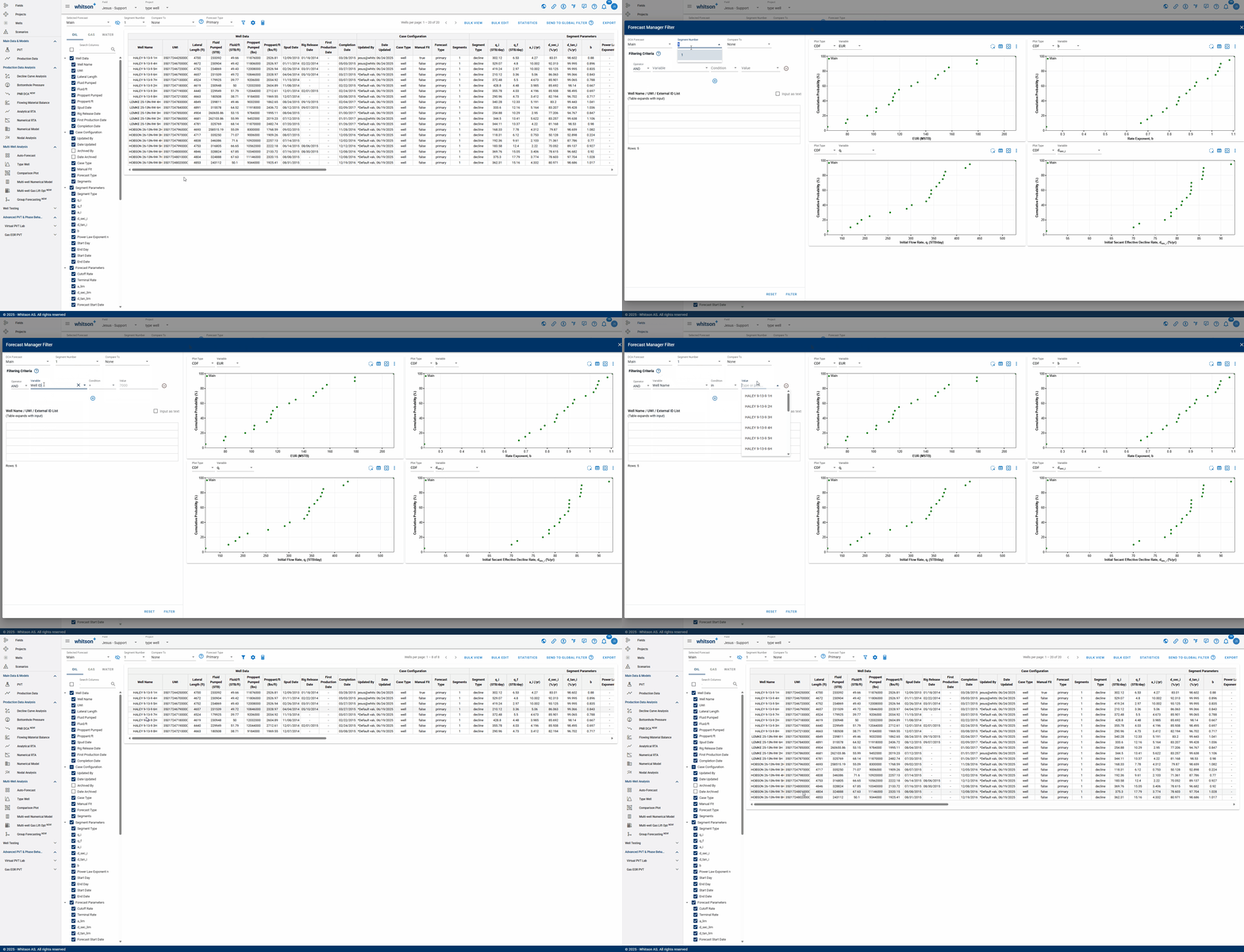
Allows you to filter wells based on different criteria:
-
DCA Forecast: to filter by forecast saved case.
-
Filter by Segments: to filter wells based on number of segments.
-
Compare to: to filter by comparing two saved cases.
-
Filtering Criteria: to filter wells based on a condition that a variable meets.
- Variable: can be selected from a drop-down list, includes variables related to main well information & inputs, reservoir properties, completion metrics and well location information.
- Condition: the following conditions can be selected from a drop-down list: equal to (=), less than (<), greater than (>), less than or equal to (), greater than or equal to (), not equal to () and case-sensitive text filtering on a string variable (in). For more specific filtering, you can add multiple conditions that will be combined using AND logic.
- Value: the value associated with the condition.
-
Well Name / UWI List: there are two filtering options. You can copy and paste a list of wells in a table format (the table will automatically expand to fit the data). Alternatively, you can copy and paste a list of wells as text, separated by commas.
Warning
RESET to remove all filters and see all the wells in the project.
1.1.1. Sorting
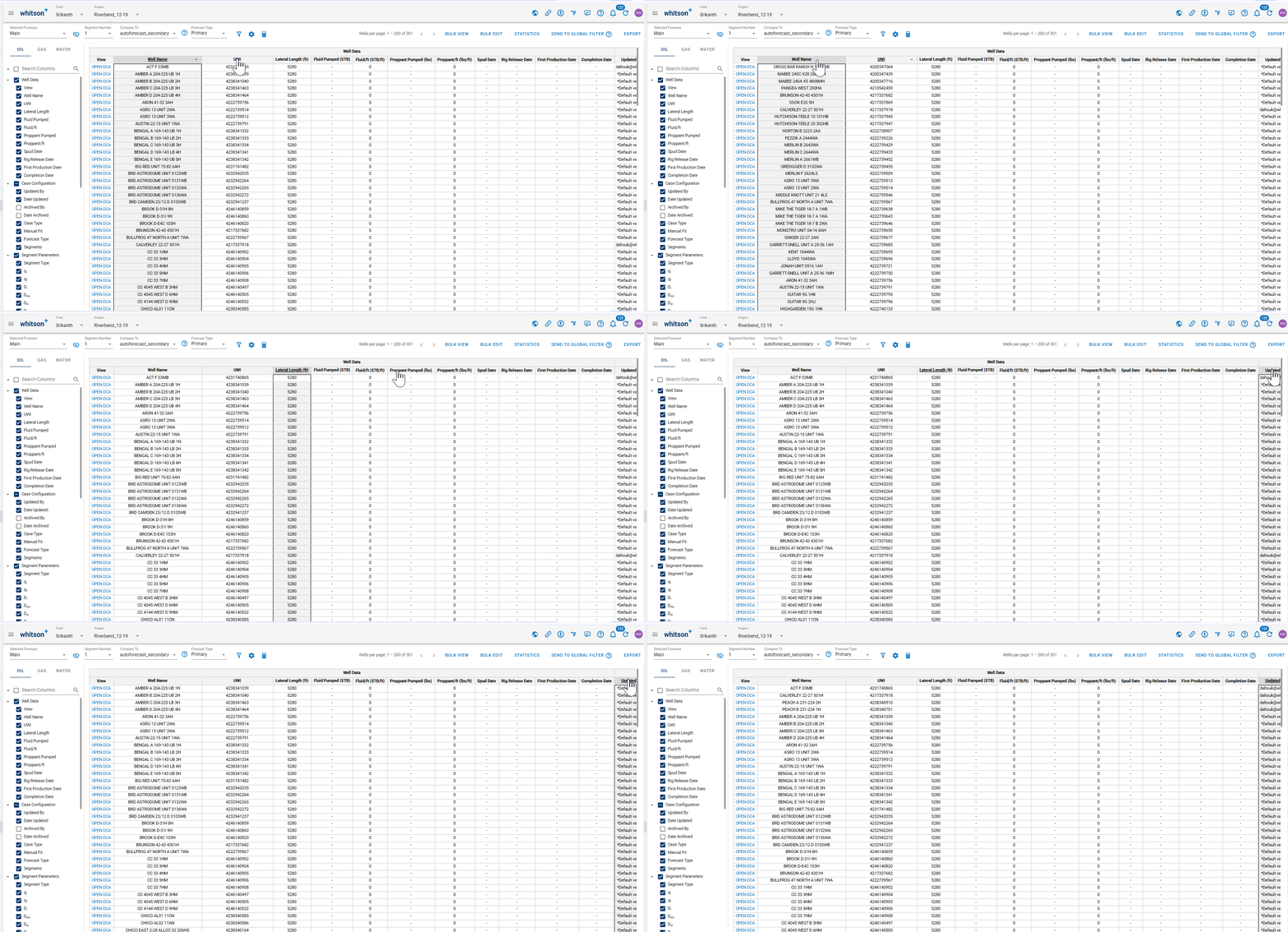
You can sort any table column by double-clicking the column header.
- Text columns (e.g., well name): sort alphabetically (A to Z or Z to A).
- Numeric columns (e.g., rates, depths): sort by value (low to high or high to low).
Double-click the header once to sort descending. Double-click the same header again to switch to ascending.
1.2. Hindcast
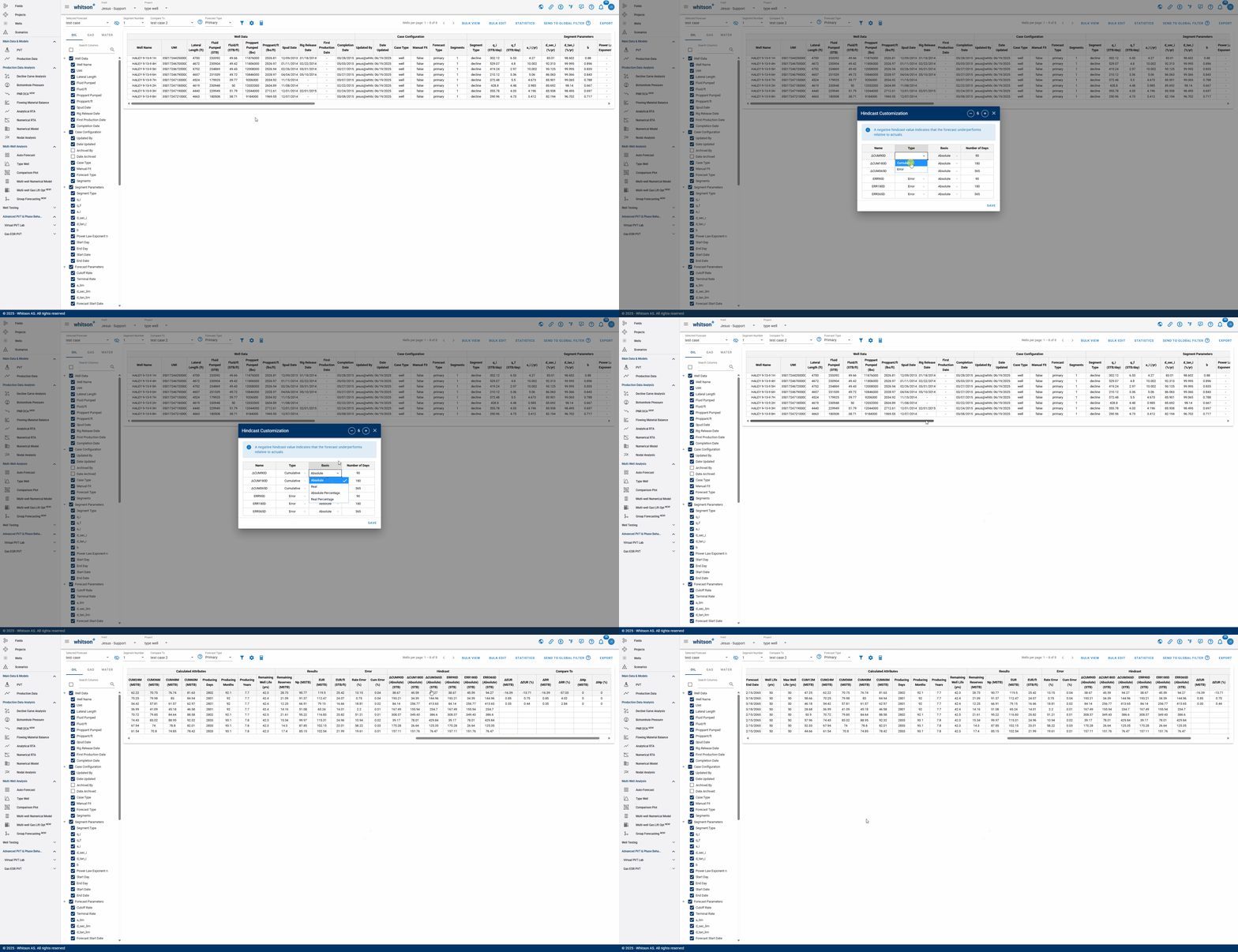
whitson+ offers hindcasting capabilities to evaluate the accuracy of auto-forecasted results. During the fitted period, users can report errors as absolute, real, or percentage values across a custom time range.
Default error metrics are provided but can be tailored within the Forecast Manager—even after new production data has been added post-forecast. Additionally, users can visually inspect forecast performance and back-calculate cumulative production directly in the platform.
Info
- A negative hindcast value indicates that the forecast underperforms relative to actuals.
- If any changes are made in the Hindcast Customization section, the hindcast must be calculated using the calculator icon.
1.3. Bulk View
Allows you to view the DCA of up to eight wells simultaneously for comparison purposes.
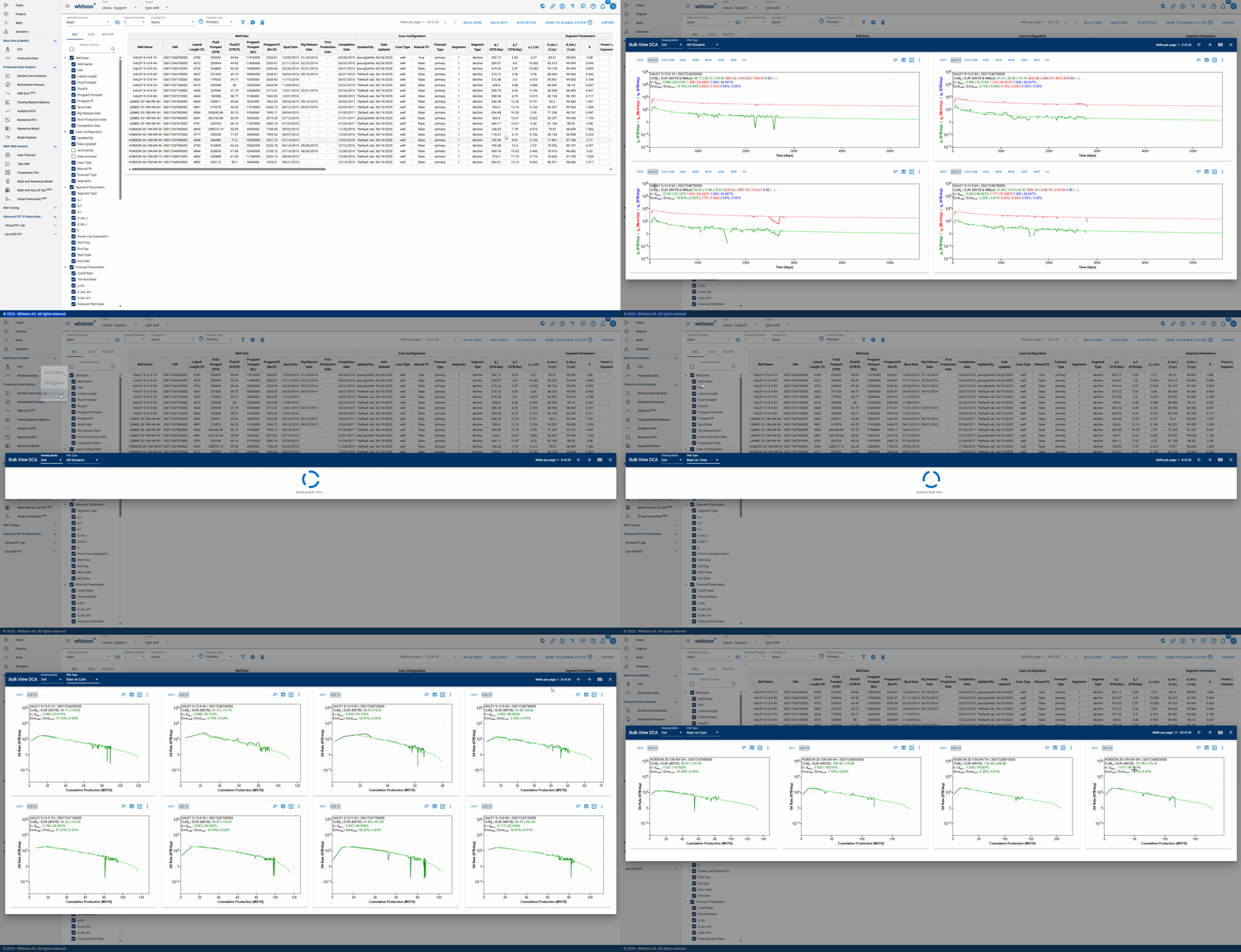
Bulk View let's you control what is displayed across the entire grid. Use the settings panel shown in the .gif above to:
- Choose the X-Axis Basis (e.g., Dates) and the Time Resolution (e.g., Daily).
- Toggle which curves appear on every plot:
- Primary Phases: Oil, Gas, and Water rates, plus cumulative options.
- Ratios: GOR, WOR, WGR, OGR, and cumulative ratio options.
- Supplemental: BHP, Choke Size, Gas Lift, and surface pressures (Line, Tubing, Casing).
Click APPLY to update all eight plots at once, or RESET to return to default settings.
1.3.1. Fast Fit
The Fast Fit panel lets you bulk fit wells directly from Bulk View, without opening each well one-by-one. It is designed for quick QC and fast adjustments across the wells shown in the 2x4 grid.
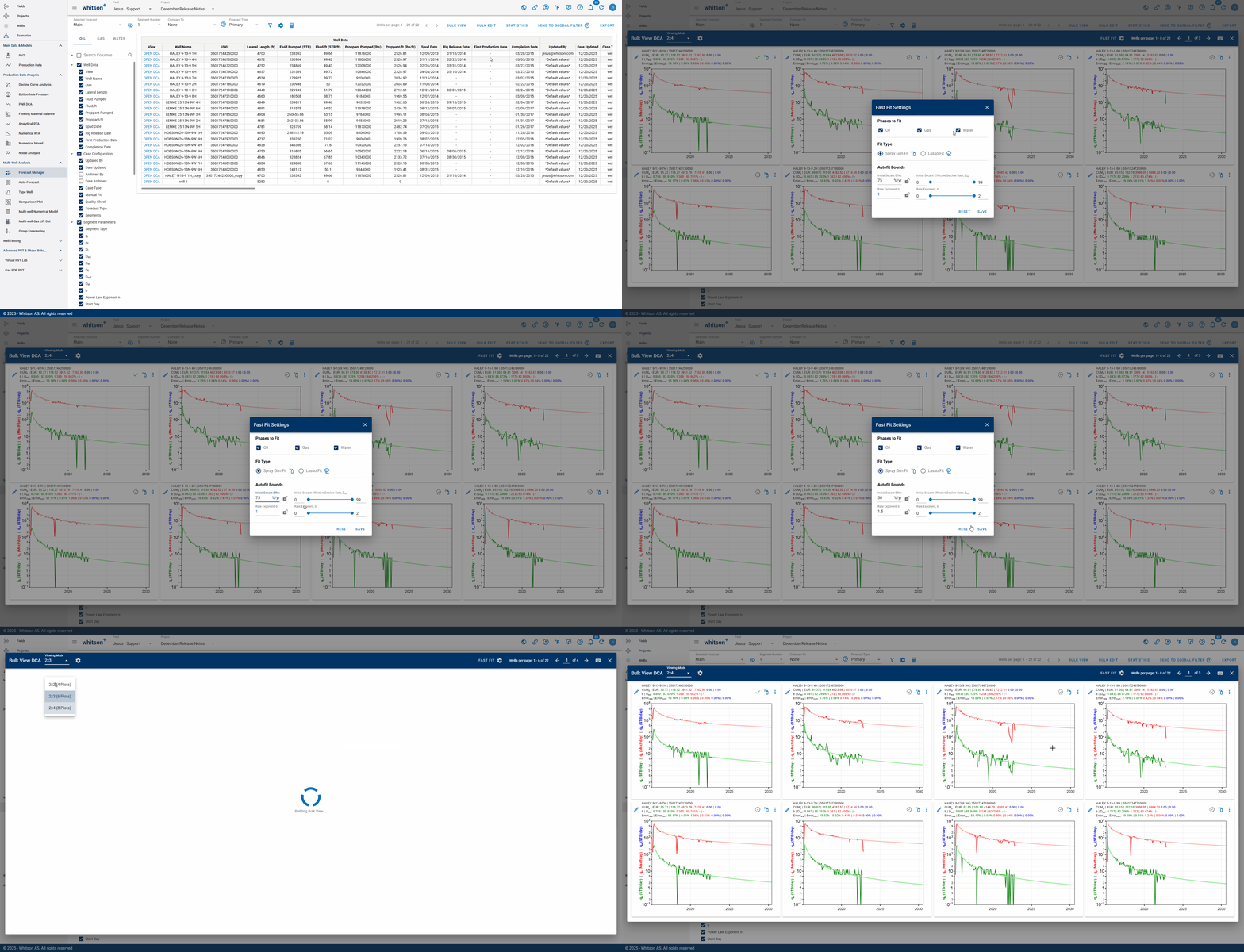
Use Fast Fit to:
- Select which phases to fit: Oil, Gas, and/or Water.
- Choose a Fit Type:
- Spray Gun Fit: quickly applies a fit over the visible trend.
- Lasso Fit: fits only the points you select.
- Set Autofit Bounds (with sliders) to control the allowed range for:
- Initial secant effective decline rate, Dsei
- Rate exponent, b
- Use the lock icons to hold values constant while you adjust the other bounds.
Click SAVE to apply the Fast Fit settings, or RESET to return to defaults.
1.4. Bulk Edit
Provides the ability to edit DCA settings for all wells at once. You can modify terminal conditions, decline rate type, and more, as demonstrated in the GIF below.
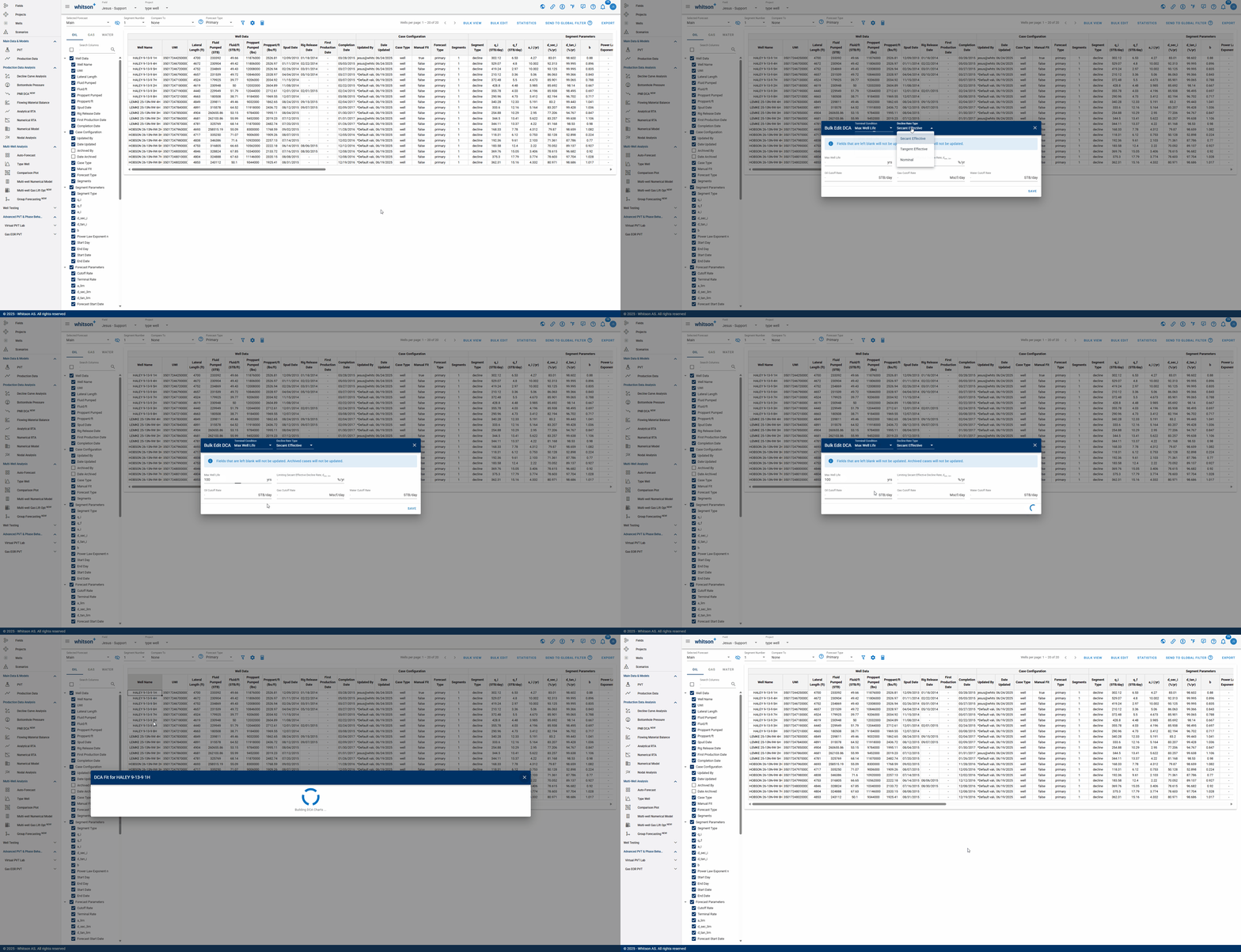
Info
Fields that are left blank will not be updated. Archived cases will not be updated.
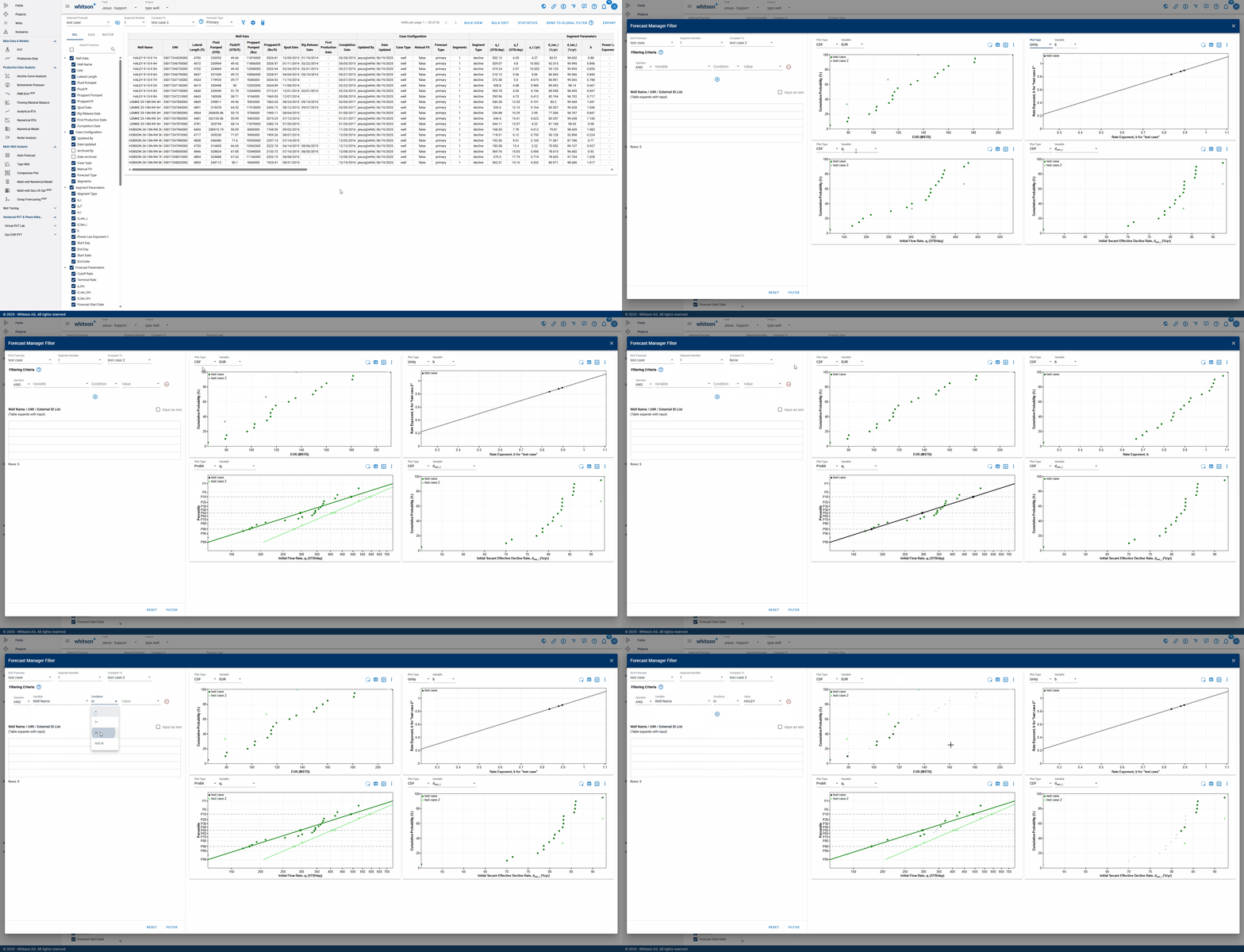
1.5. Statistics
The Statistics feature provides visualization tools including; unity plots, cumulative distribution function (CDF) plots, and probit plots; for analyzing key decline parameters. Users can display up to four plots simultaneously and choose from a wide range of variables to visualize. These tools support filtering and quality control (QC), making it easy to validate and compare forecast results across wells, as demonstrated in the GIF below:
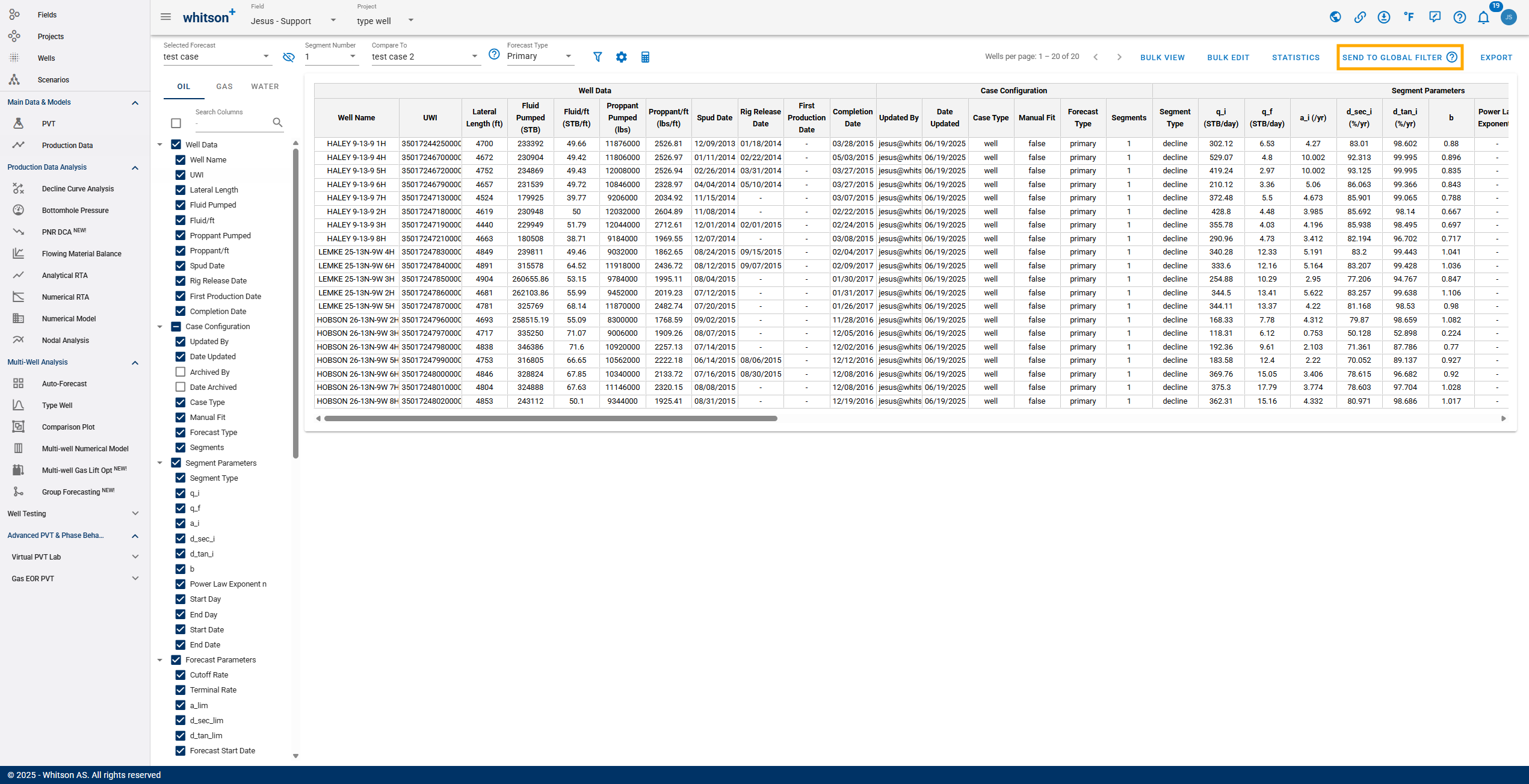
1.6. Global Filter
Sends the selected forecast filter criteria to the global well filter. This applies the filter from the Forecast Manager across the entire platform. You can confirm this by navigating to the Wells page, where the filter will appear as active.
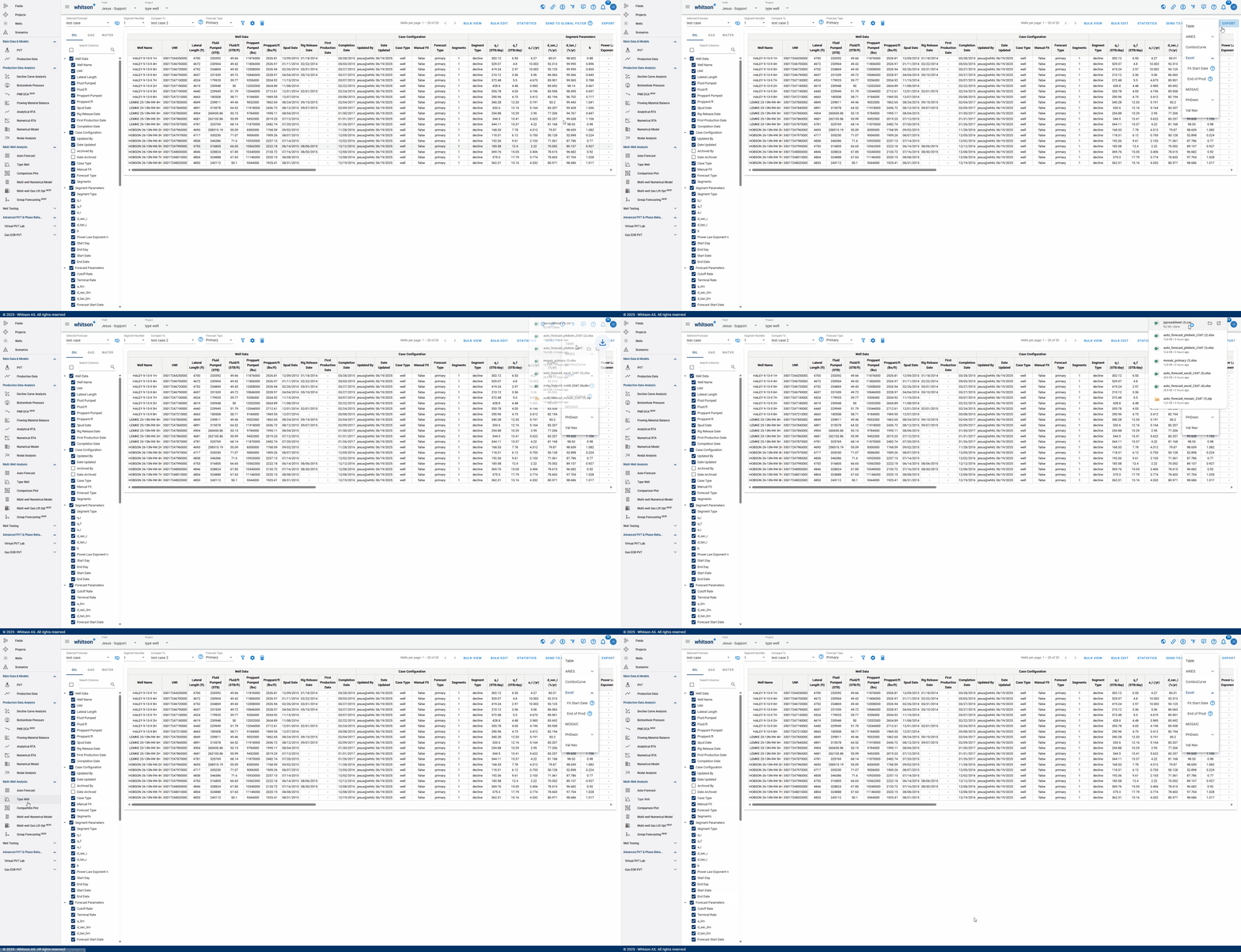
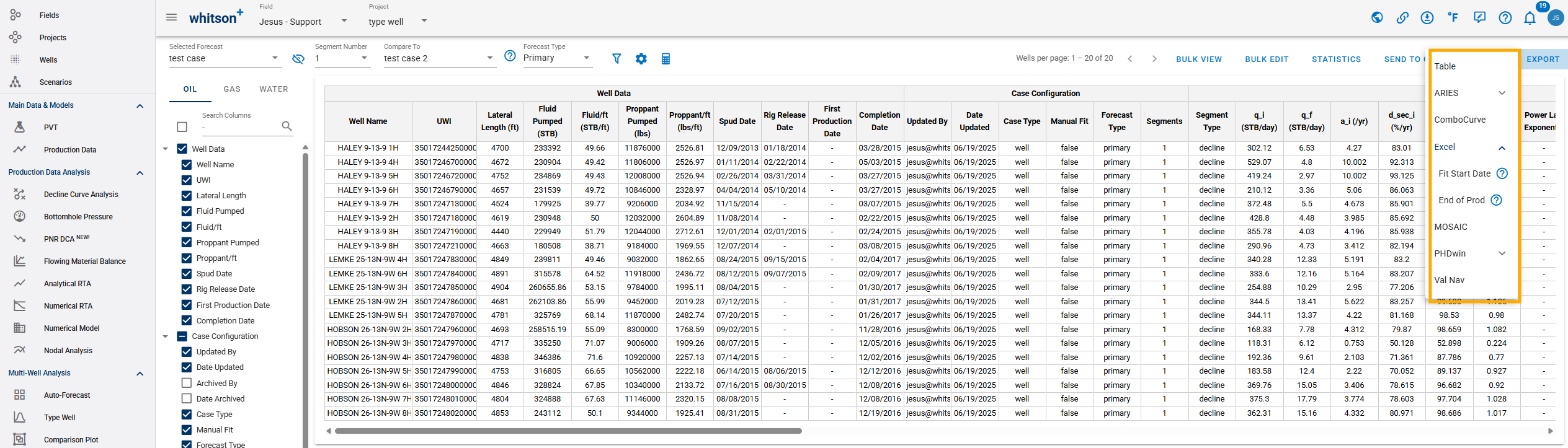
1.7. Export
Click EXPORT up to the right to export to third-party software (for all streams). whitson+ supports the following for Forecast Manager:
- Table
- Aries
- ComboCurve
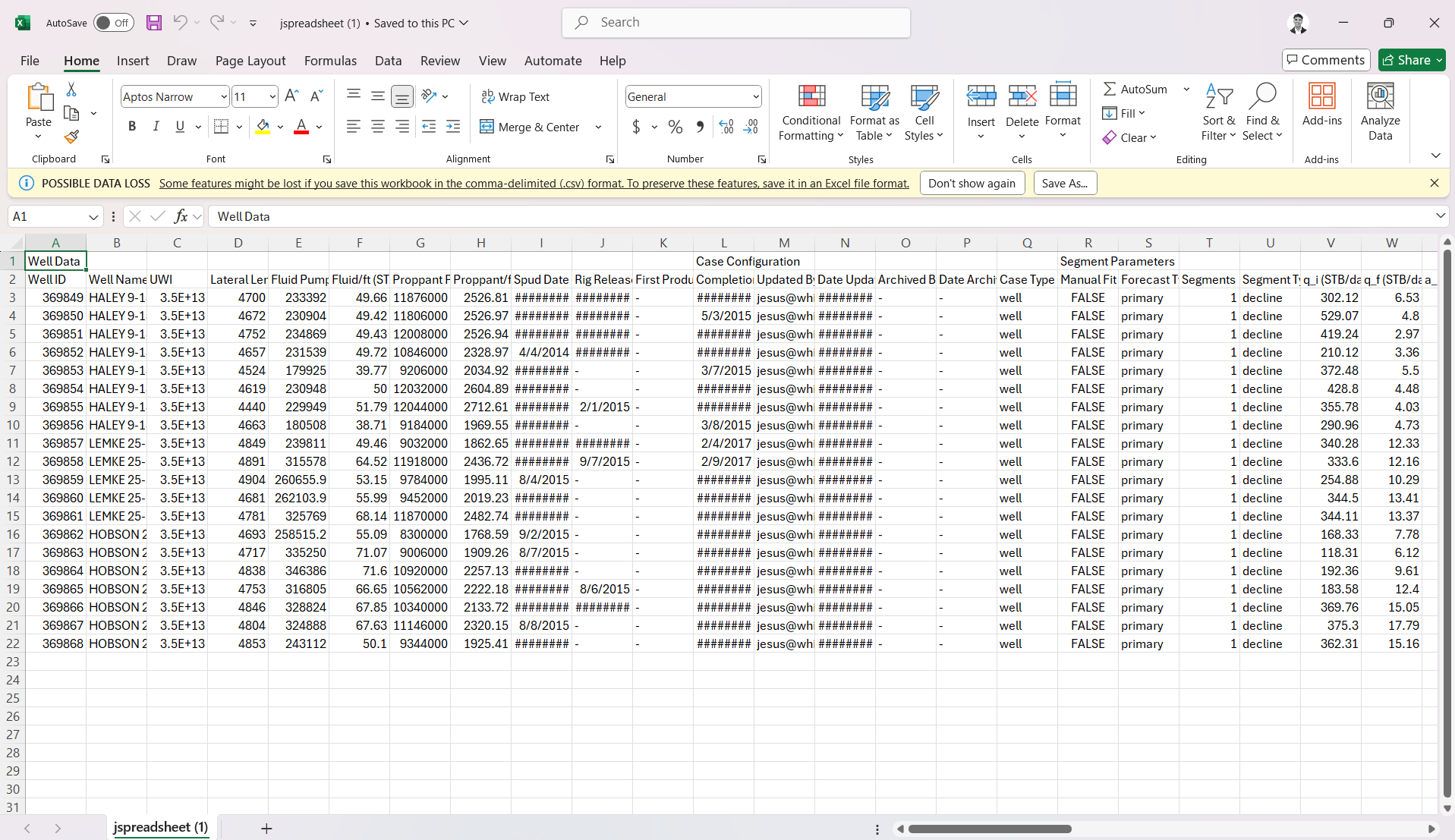
- Excel
- MOSAIC
- PHDwin
- Val Nav
Table
You can use this option to bulk export all well declines in the form of a table.